Hi, Hope it works for you.
Ender- 3
Software 2.0.8.27
Hardware 4.2.2
2.0.8.2
April 28 2022
Setting up an Ender-3 after installing a CR Touch Probe
The ‘Bed Level’ measures the height of the print bed at 16 places. However, the probe is set lower than the nozzle and also to the left and in front of it.
This procedure determines the Offsets that will place the print nozzle, when printing, where the measurements were taken by the probe.
Manual Bed Level
Before carrying out this procedure it is worth manually levelling the bed at all four corners.
Navigate from the Info Screen > Main > Motion > click on Disable Steppers.
Make sure the Nozzle is clear of the bed and manually move the print head to the bottom right corner of the bed.
Now select Move Axis and select Move Z.
Move Z in small increments until a piece of printer paper has some friction between the nozzle and the bed. Don’t adjust the Z position again – the remainder of the manual level is done with the ‘height Adjusting Wheels’ under each corner of the bed.
Go back to Motion and click on Disable Steppers. Slowly and gently manually move the print head to bottom left of the bed. If the nozzle catches on the bed, lower the bed with the height adjusting wheel under the bottom left corner. Using only the wheel, adjust the height of the bed so that there is friction on the paper between the nozzle and the bed.
Move the bed forward and using only the height adjusting wheels do this for the top right and top left corners. For a better level it might be necessary to repeat the process using only the height adjustment wheels until all the corners feel to have the same friction.
Probe Offset Calibration
The X, Y and Z probe offsets are the difference between the position of the probe and the printer nozzle.
The value in brackets are the ones I recorded for my printer during the process.
Setting the X offset
Measure as accurately as possible, along the X axis, the distance between the probe and the nozzle. Make a note of the value. (48mm)
Navigate to the Main Menu > Configuration > Advanced Settings > Probe Offsets > Probe X Offset. Enter the distance as a negative value. (-48mm)
Setting the Y Offset
Again, measure as accurately as possible, along the Y axis, the distance between the probe and the nozzle. Make a note of the value. (8.0mm)
As before, navigate to Main Menu > Configuration > Advanced Settings > Probe Offsets > Probe Y Offset. Enter the distance as a negative value. (-0.8mm)
Now go back to Configuration and click on ‘Store Settings’
Setting the Z Offset
Initially set the Probe Z Offset to zero
Navigate from the Info Screen to Main > Motion > Probe Z Offset – Set value to zero and click.
Back to Motion > Auto home. When it has finished go to Info Screen and note the Z position. (3.03mm).
When the Probe clicks up for the second time this is where it thinks Z = 0. After this the print head moves up a little further to clear the bed. By design the nozzle is higher than where the probe detects Zero and this difference will be close to the Z Offset.
Navigate to Motion > Move X Axis. Adjust the X position by minus the recorded value in ‘Setting the X Offset (-48mm).
This puts the nozzle where the probe made the measurement
You could do the same for the Y axis but as this is a much smaller value its effect is likely negligible.
Navigate to Motion > Move Z Axis. Set the value to minus the recorded value (-3.03).
This puts the nozzle where the probe determined Z = zero.
Go back to Motion > Probe Z Offset. The value should be Zero. Using a piece of printer paper between the bed and the nozzle reduce the Z Offset, in small, negative, increments, until the paper is a firm friction fit. Record this value. (-0.78mm). It may be necessary to make fine adjustments to this value when doing a first layer test print. For now, store this value. My final value was 0.88mm.
Navigate from Info Screen > Main > Configuration > Store Settings
Bed Level
Navigate to Main Menu > Motion, click on ‘Bed level’ – The probe will measure the bed’s Z position at 16 places. At the end it will return to the centre.
Now go back and in Configuration and ‘Store Settings’.
Modifying the G-code
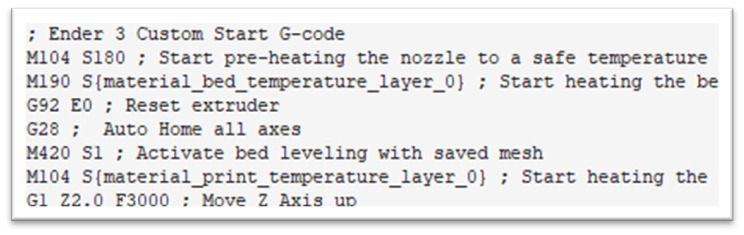
The bed level values are stored as a mesh and must be called at the beginning of each print. This is done with command M420 S1 to enable the mesh. M420 S0 disables it.
In ‘Cura’ select the printer ‘Creality Ender-3’. Then ‘Manage Printers’. Then ‘Machine Settings’. Enter M420 S1 as shown below (between G28 and M104 S)
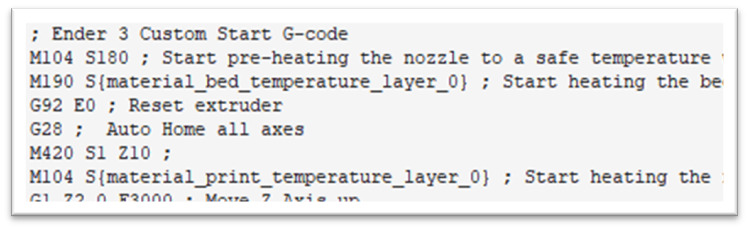
A further refinement can be made by gradually removing the bed levelling so that the final surface, of the model, is flat. If not enabled the top surface of the model has the same contour as the bed. This is achieved by adding the parameter Z and a value to the M420 S1. M420 S1 Z10. Where Z is the auto fade command and the value (10) is the number of mm to achieve this. If desired include this as shown below.