When to calibrate
When the servo motor operates abnormally, makes unusual noises, or easily triggers protection faults, it may be due to a change in the servo motor’s zero position. In this case, the servo motor’s zero position needs to be recalibrated.
Calibration tool
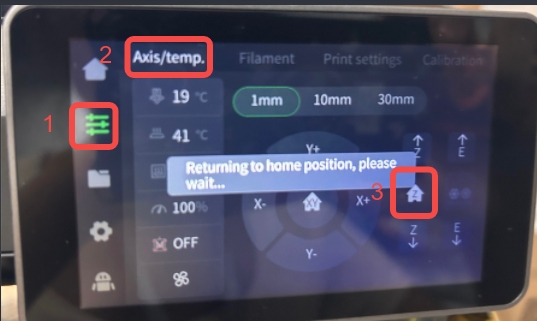
To confirm success, use the Fluidd interface:
- Open a browser on your computer and obtain the printer’s IP address from the machine’s network interface.
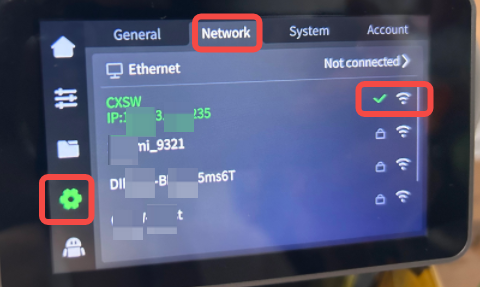
How to obtain IP address
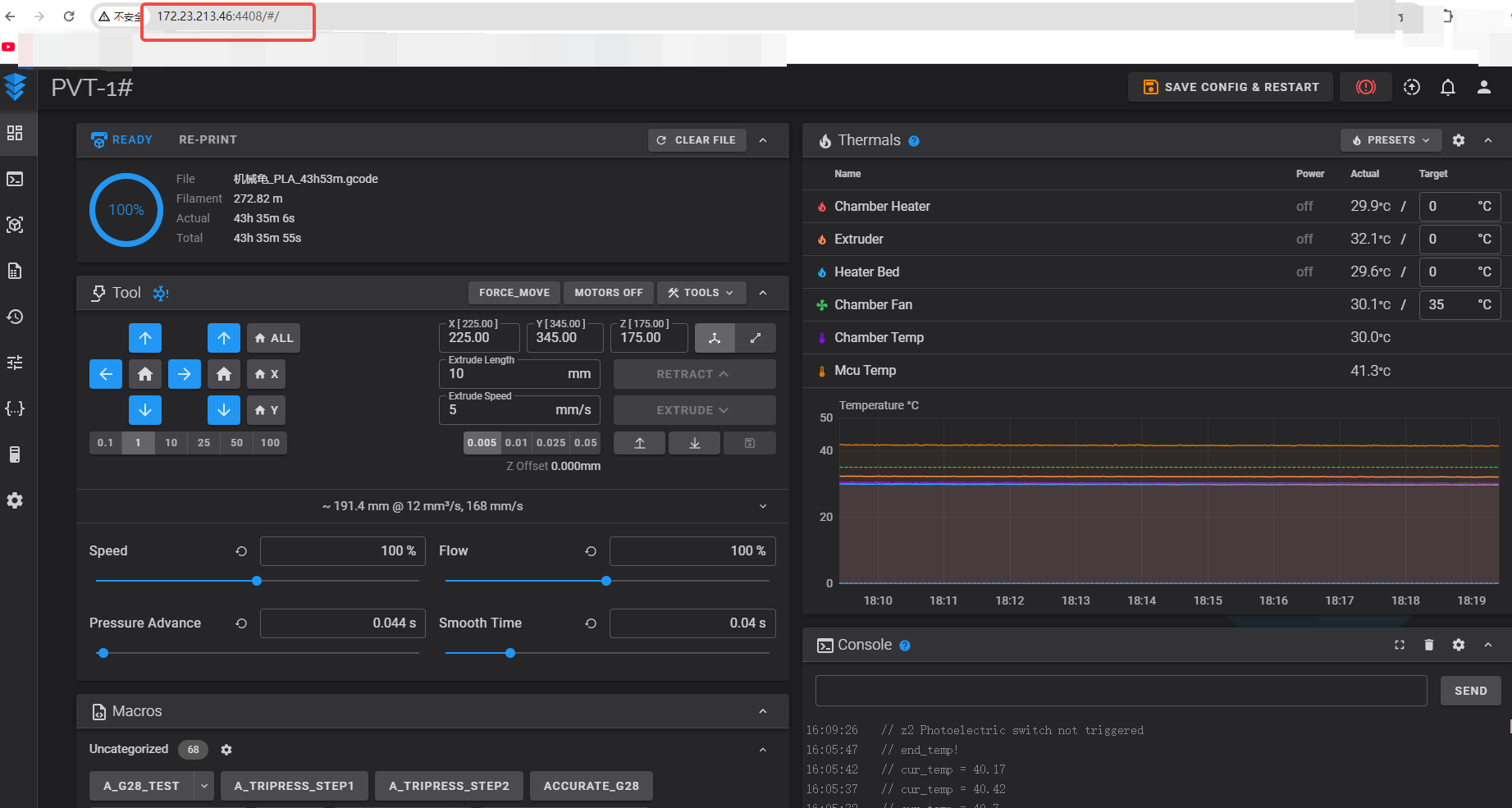
- Copy and enter the machine’s IP address plus port number :
:4408in the browser (e.g., 192.168.1.1:4408) to access the Fluidd window.
Calibration steps
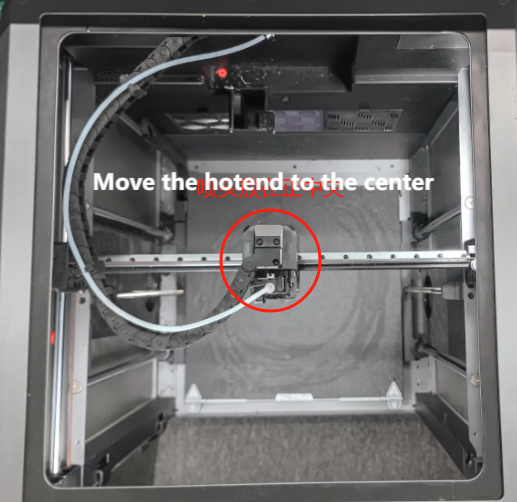
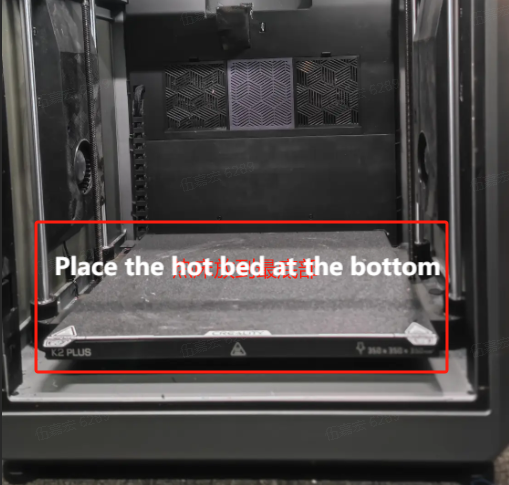
With the motor in a disabled state (you can click motor to unlock it on the screen), move the nozzle to the center and push the hot bed to the bottom:
Log in to the Fluidd backend. Enter the machine’s IP address plus port number ::4408 in the browser (e.g., 192.168.1.1:4408) to access the Fluidd window.
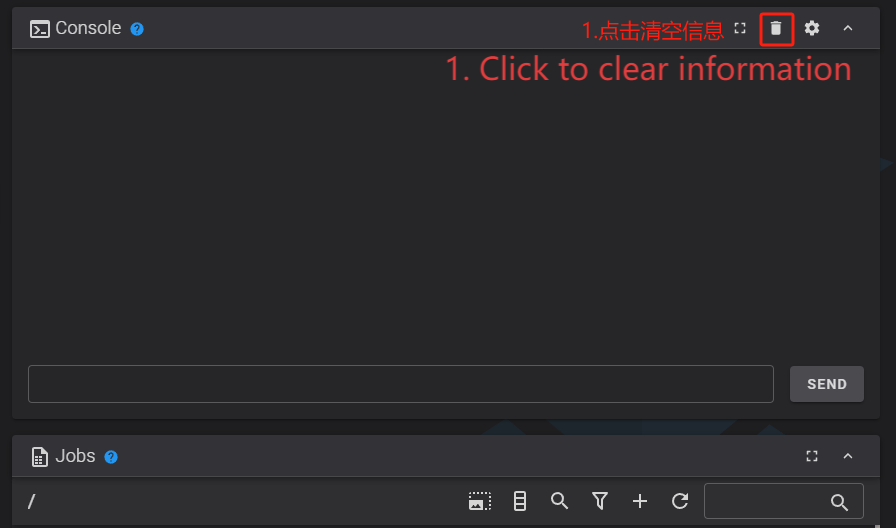
Execute the following command and wait for about 3 minutes until all motors are calibrated.
MOTOR_FLASH_PARAM NUM=1 DATA=6 PARAMS_TYPE=float ID=9
MOTOR_FLASH_PARAM NUM=1 DATA=6 PARAMS_TYPE=float ID=25
MOTOR_FLASH_PARAM NUM=2 DATA=6 PARAMS_TYPE=float ID=9
MOTOR_FLASH_PARAM NUM=2 DATA=6 PARAMS_TYPE=float ID=25
MOTOR_ELEC_OFFSET_CALIBRATE NUM=1
MOTOR_ELEC_OFFSET_CALIBRATE NUM=2
Note: Do not power off the machine during calibration, as it may cause abnormalities.
At this point, you can click on the homing operation. If there are no error messages on the screen, it indicates that the calibration was successful and completed. If error messages appear on the screen after the homing operation, it means the calibration has failed. In this case, you need to provide a screenshot of the calibration information and contact our after-sales technical team (cs@creality.com) for support.
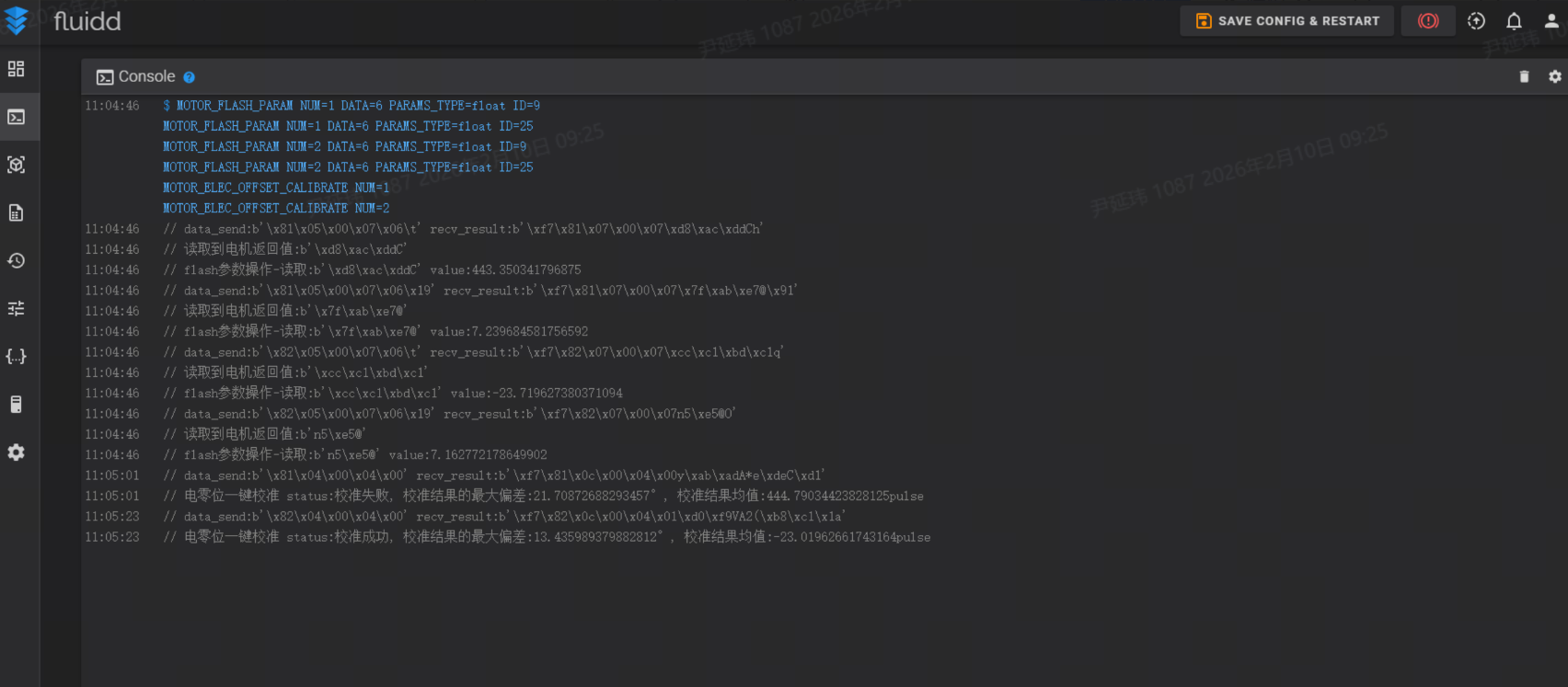
Screenshot of calibration information