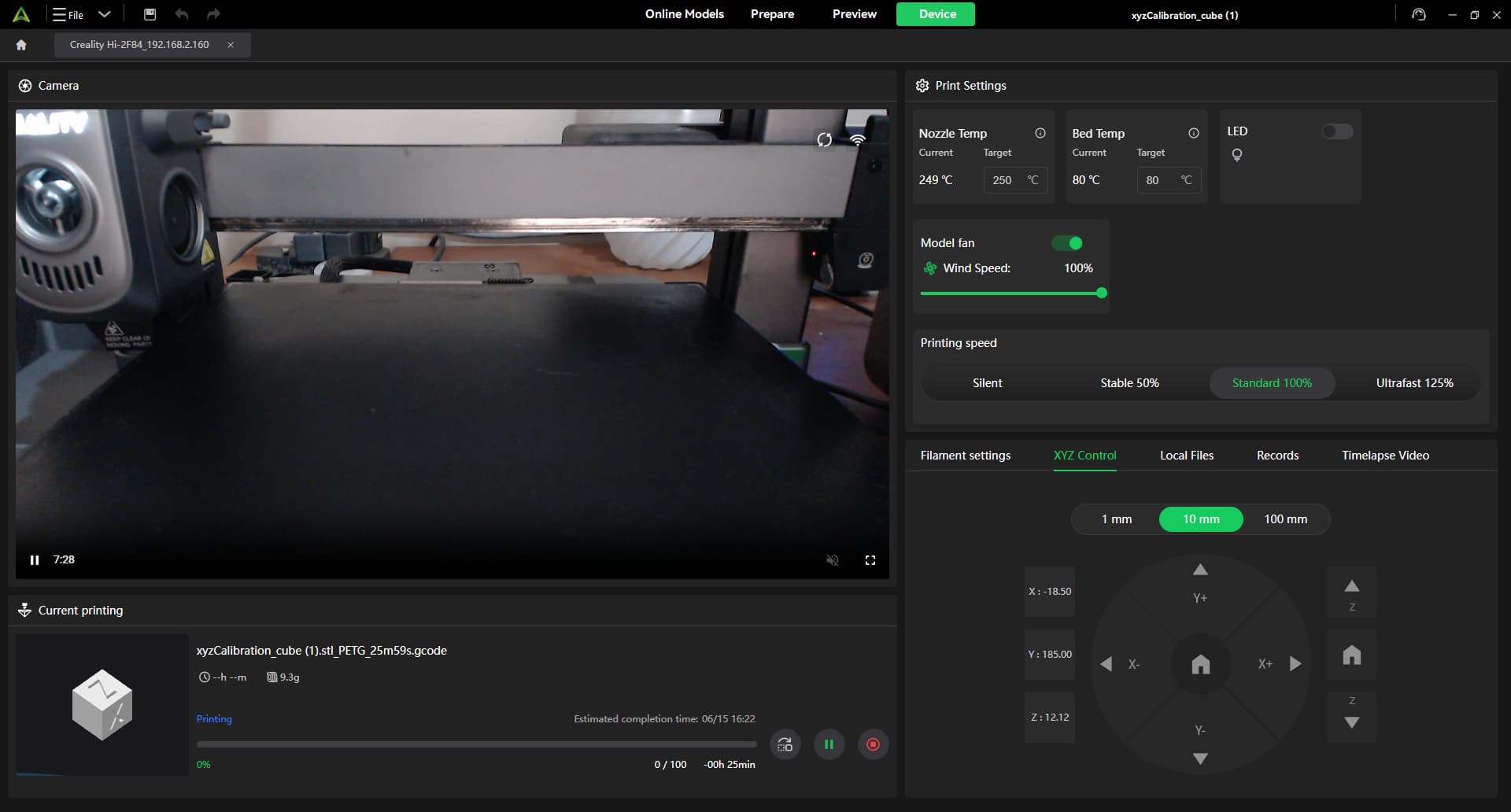
I have a Logitech C920 webcam connected to my Creality Hi USB port.
I dual boot the same PC into Linux Mint 22.3 and Windows 11 so hardware is identical in both cases.
I am using the same version 7.1.1.4472 of Creality Print on both systems.
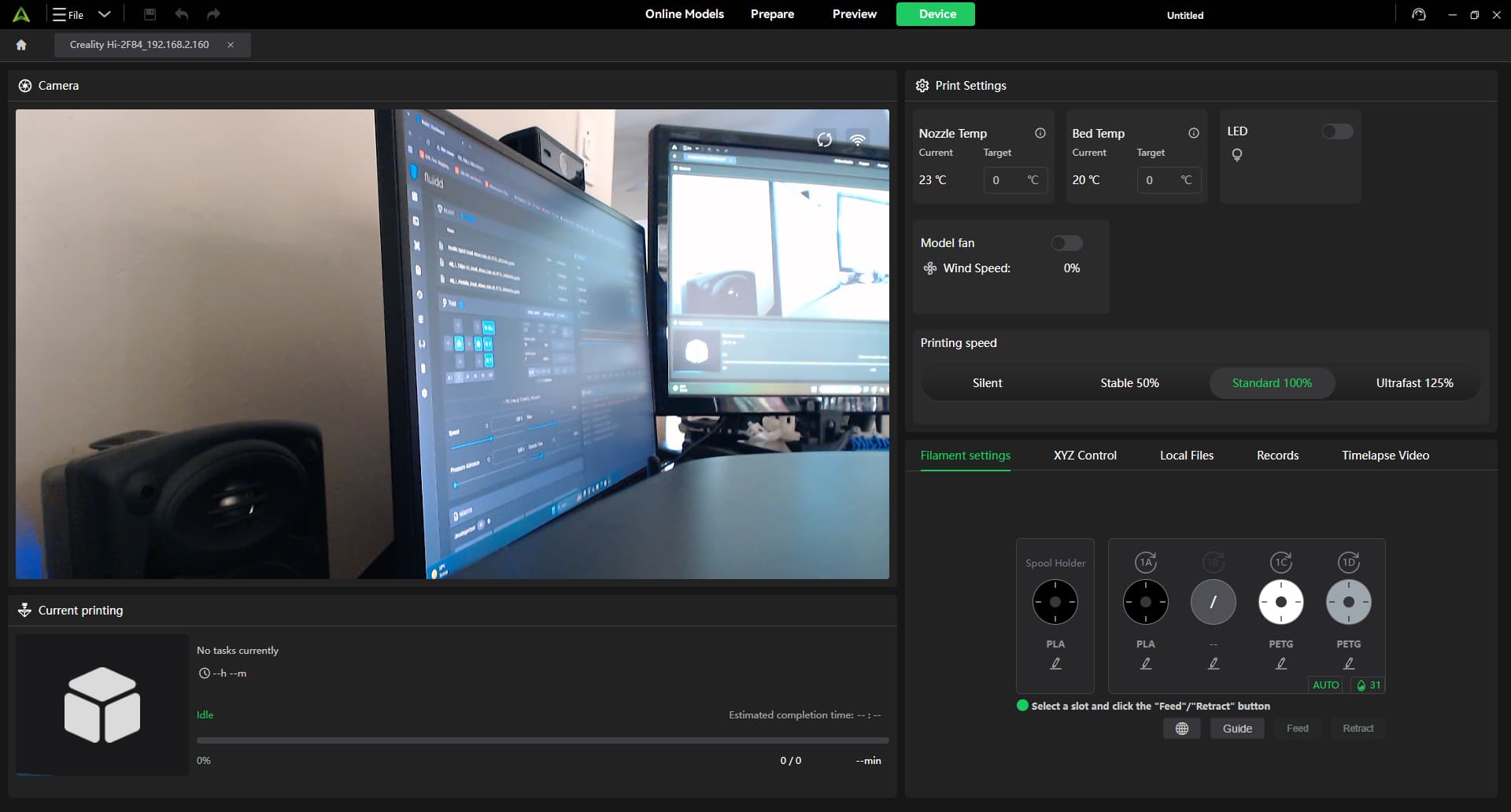
In Windows the camera shows up just fine using the Creality Print app.
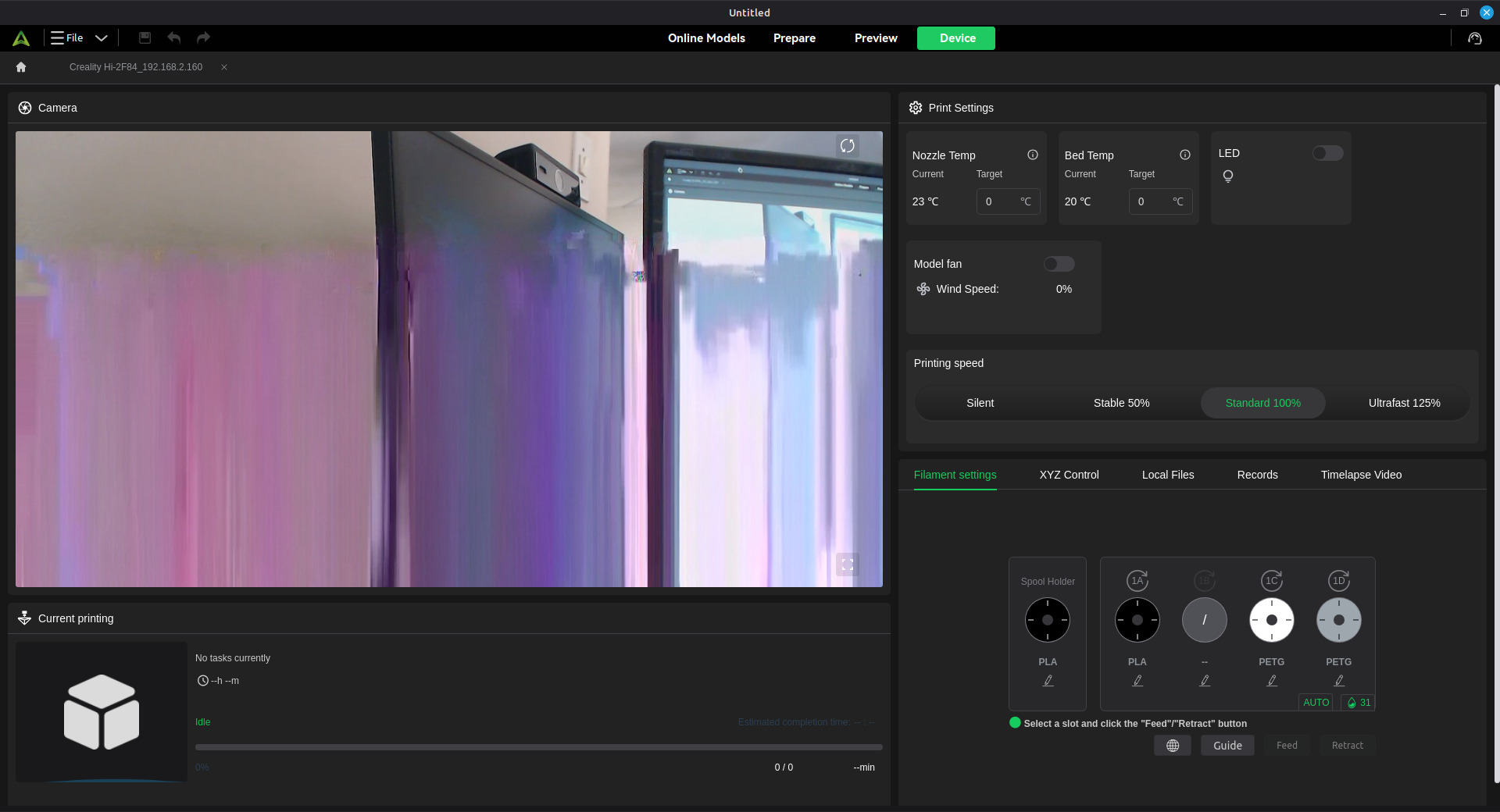
In Linux Mint the image is distrorted as can be seen below.
Is there anything I can do to improve the image I get in Linux Mint?
Thanks.
Mike
user3033132230:
Logitech C920 webcam
What I would do is to check if webcam works properly in linux using for example Cheese ,Guvcview…. not thru creality print, to see if there is maybe driver or whatever issue. Maybe missing some codecs , since it is streaming from printer.
Sorry i couldn’t help more
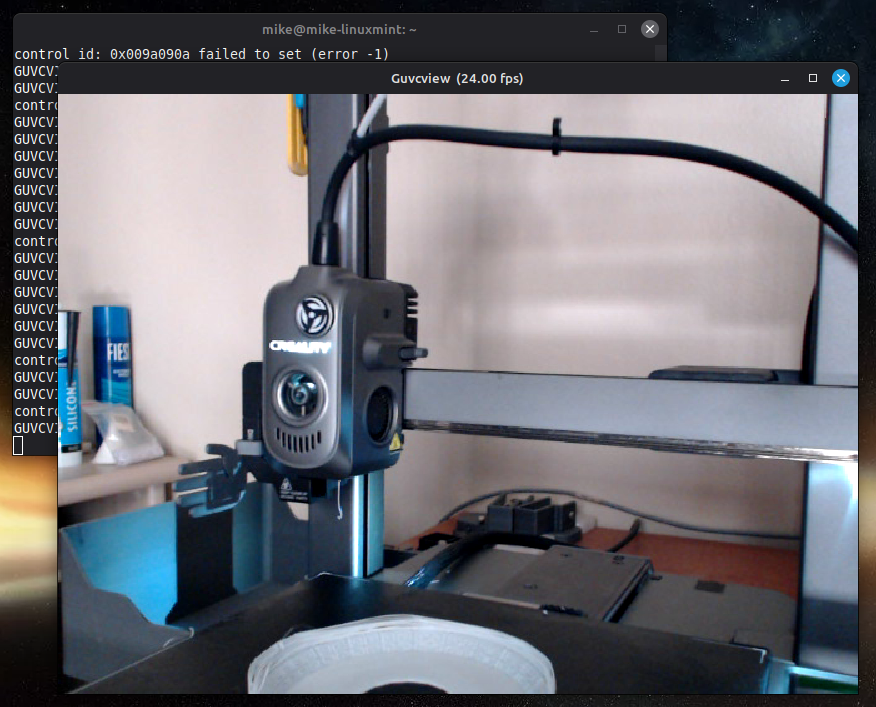
Just stuck the camera into the computer running Linux Mint 22.3 and ran guvcview and here’s the image, just a-ok.
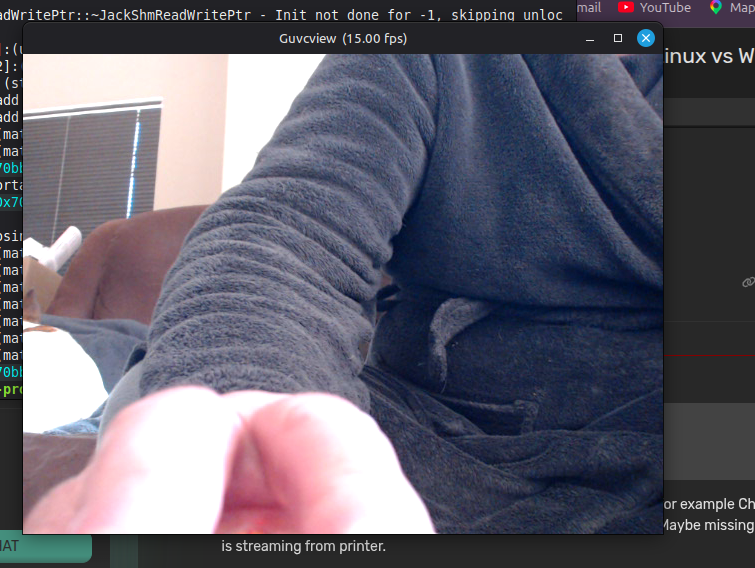
Also plugged the camera into a completely seperate laptop also running Linux Mint 22.3 just incase and it works fine too.
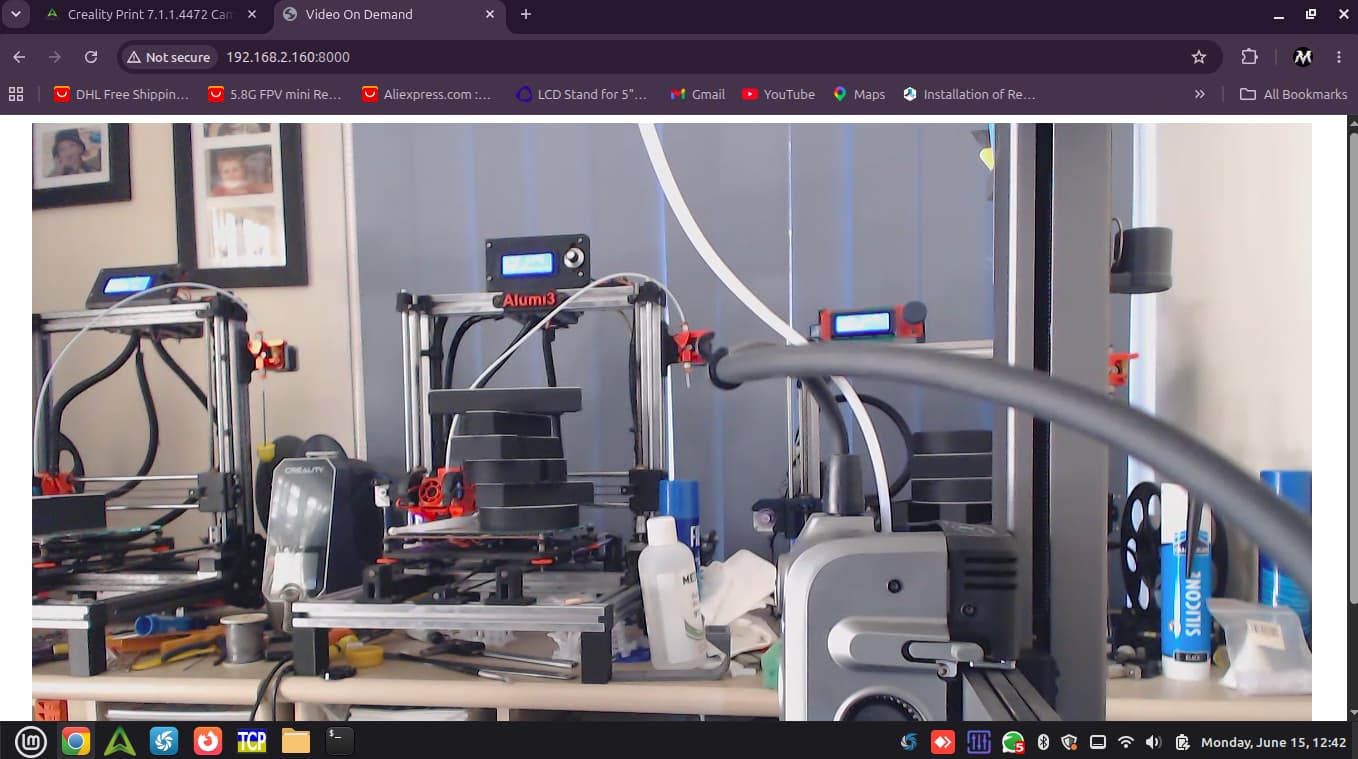
If I go onto the Hi’s web streaming page with the C920 connected the image is correctly displayed as below:
So it seems to be the way the image is being displayed in the Creality Print application on Linux where the issue is.
At least you know where the problem is.. I am also on linux mint, and personally I use Creality Print V7.0.0.4212**,** beacause all versions after that have bug that don’t allow to edit filament settings…
opened 10:51PM - 28 Apr 26 UTC
bug
### Is there an existing issue for this problem?
- [x] I have searched the exis… ting issues
Related: **#552** (same symptoms on **7.1.0.4414** Ubuntu 24.04 AppImage).
### CrealityPrint Version
**7.1.1.4472** (GitHub release tag [`v7.1.1`](https://github.com/CrealityOfficial/CrealityPrint/releases/tag/v7.1.1) — **prerelease** at time of report)
### Operating System (OS)
Linux
### OS Version
Ubuntu **24.04.4** LTS (Noble)
### Printer
K2 Pro
---
## Problem summary
On Ubuntu 24.04, in Creality Print **7.1.1.4472**, settings inputs become **read-only** and cannot be edited reliably.
Affected areas:
- Filament settings
- Process/Slicing settings
- Printer settings
This is reproducible in **7.1.1.4472** and does **not** occur with **7.0.1.4212** on the same machine/workflow.
## Environment
- OS: Ubuntu 24.04.4 LTS (x86_64)
- **Problem build (official Linux AppImage from `v7.1.1`):** `CrealityPrint-V7.1.1.4472-x86_64-Release.AppImage`
- URL: https://github.com/CrealityOfficial/CrealityPrint/releases/download/v7.1.1/CrealityPrint-V7.1.1.4472-x86_64-Release.AppImage
- Verified `sha256`: `cf9daa14dda8168c131f504c875ec089b498db3a034dcb7789ce5c05b73f98f0`
- **Comparison (works here):** `CrealityPrint_Ubuntu2404-V7.0.1.4212-x86_64-Release.AppImage`
> **Correction:** An earlier draft mentioned `CrealityPrint_ubuntu2404-V7.1.1.4472-...` — that filename **does not** exist on the `v7.1.1` release; the Linux asset above is the correct one.
## What was tested before reporting
A full cleanup was performed before retesting **7.1.1.4472**:
- removed `~/.config/Creality/Creality Print`
- removed `~/.local/share/CrealityPrint`
- removed `~/.cache/CrealityPrint`
- removed `~/.Creality`
- removed temporary Creality folders in `/tmp`
After that, **7.1.1.4472** was installed again and tested from a clean state.
## Reproduction steps
1. Open Creality Print **7.1.1.4472** on Linux.
2. Select/add printer profile.
3. Create a **new filament profile from scratch**.
4. Try to edit parameters in filament/process/printer tabs.
## Actual result
Inputs behave as locked/read-only and edits cannot be applied normally.
## Expected result
Inputs should remain editable and values should be saved, as in **7.0.1.4212**.
## Technical hypotheses (same class of issue as #552)
Possible regression area in GUI state / preset editability flow (see also discussion in **#552**):
- `src/slic3r/GUI/ParamsPanel.cpp`
- `src/slic3r/GUI/Tab.cpp`
- `src/slic3r/GUI/SyncUserPresets.cpp`
- `src/libslic3r/Preset.cpp`
Hypothesis: stale active-tab / preset state causing fields to be treated as system/default (read-only). Not confirmed; matches symptoms.
## Request
Please confirm as a **Linux regression** in the **7.1.x** line (including **7.1.1.4472**) and advise workaround or planned patch.
---
### Project file & Debug log uploads
None attached yet; can provide logs if maintainers indicate where Creality Print writes them on Linux for this build.
### Checklist of files to include
- [ ] Log file
- [ ] Project file
### Anything else?
_No additional notes._
So maybe try some older versions of CrealityPrint:
Releases · CrealityOfficial/CrealityPrint · GitHub
Hey Steveee,
OK, so I went and got all the version 6 and version 7’s and they all the same, image is corrupt in every version.
I am running the AppImage versions using Gear Lever. Should I maybe try flatpaks?
Might it be a printer firmware issue?
I am running the CR4NU200360C20_ota_img_V1.1.0.65.img firmware.
Is it possible to flash backwards, is it suggested to test this way at all?
I hoped it was that easy sorry
I saw on several topics people suggests flatpaks for better integration i don’t know, personally never used one, but worth the try .
As for a firmware downgrade it is possible, here they are talking about that:
Same problem here after update, please share the downgrade tutorial.
thanks in advice
Maybe someone who done it, maybe help more for exact steps
OK, so I downgraded all the way back to CR4NU200360C20_ota_img_V1.1.0.38.img and then tried a few Creality Print versions on one Linux Mint computer all the way up to 7.1.1.4472 and they were all the degraded same.
Then I upgraded the Hi to version V1.1.0.47.img and reran the various flatpaks. Still the same.
Now upgraded to the latest V1.1.0.65 firmware and reran on the different version flatpaks. I still get the same issue.
While I was doing this I was checking on the Windows version of Creality Print right the way through all the firmware versions, and it was working fine.
Soooo, this points to a definite issue with the Linux versions of Creality Print.
user3033132230:
guvcview
Sorry to hear that, i don’t know really , maybe create bug report, but that’s a long shot..
Until it’s fixed you can always use guvcview or similar, i know it’s a hassle every time you have to open another app, but at least you can see what’s happening remotely.
Good luck
The main idea is to use an external camera for frontal timelapses instead of the underarm side camera on the Hi.
I am testing now on Windows to see if the timelapses will come out alright with the external camera connected to the Hi’s USB port.
I’ll let you know either way.
So even if you got an eternal USB camera connected it still uses the underarm camera….!!
Comeon Creality, you can do it, I just know you can do it!!
Since the last "Creality Hi" update, the camera image has disappeared. It works fine from Fluidd or the mobile app.
By the way, I use the Nebula via USB, and I simply disconnect the built-in camera, and it's never given me any problems.
“simply disconnect the built-in camera”?
Any clues on how to simply do this? Or does this require us to open up the printer and start disconnecting cables? Any clue or idea which cable?
I can get the USB camera to show up fine in Windows but it is not useable for the timelapses.
A “simple” choice between the built-in camera or an external USB camera would make a world of difference.