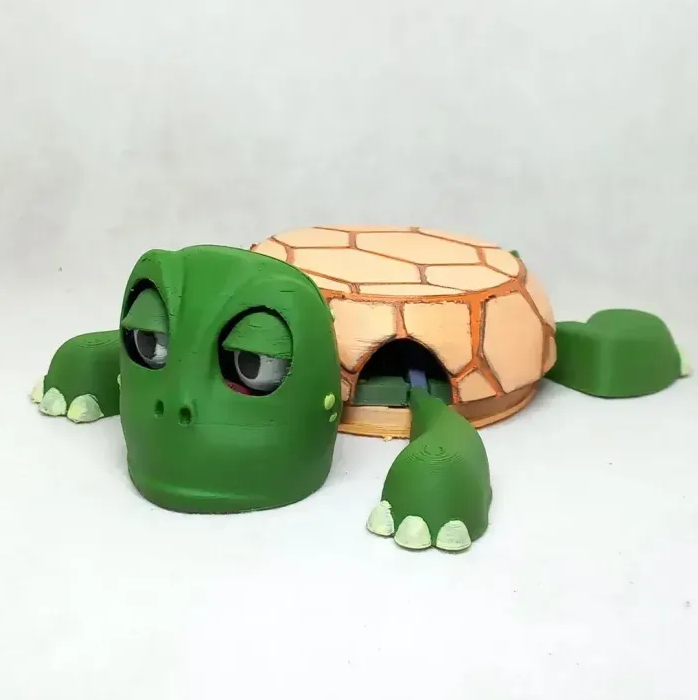
Written by Ian M. 06-30 2025
You can download the Turtle Cup Holder 3D print file in just a few minutes from trusted sites like Cults3D or Creality Cloud. These platforms make the process easy for beginners and families, with user feedback praising the simple steps and quick print times. The Creality Hi Combo gives you reliable results and smooth prints, which makes it perfect for this fun project. Jump in and see how fast you can bring your own creative idea to life!
Key Takeaways
- Download the Turtle Cup Holder STL file quickly from trusted sites like Cults3D or Creality Cloud by searching for the designer Adel85.
- Create a free account on these platforms to access downloads, save favorites, and join a helpful 3D printing community.
- Use recommended print settings such as 0.2 mm layer height, 15-20% infill, and PLA filament for smooth, strong prints without supports.
- Open the STL file in slicer software like Creality Slicer for faster printing and less filament use, then prepare your printer to start printing easily.
- If you face download or file issues, check your internet, log in properly, redownload files, or reset slicer settings; the community is ready to help.
Turtle Cup Holder Download Steps
Find the File Online
You can start your Turtle Cup Holder project by searching for the design on trusted 3D model platforms. Popular sites like Cults3D and Creality Cloud make it easy to find what you need. Just type “Turtle Cup Holder” into the search bar. You will see the design by Adel85 pop up among the top results. These platforms have a strong reputation for quality and safety, so you can feel confident downloading from them.
The Turtle Cup Holder has become a favorite in the 3D printing community. It has over 7,400 downloads and more than 1,100 likes. Many users have shared their successful prints, and the model holds a community rating of 3.8 out of 5 from 68 votes. You can see photos of finished cup holders and read comments from people who have already tried this project. This feedback shows that the design works well and is fun to print.
Tip: Look for the designer name “Adel85” to make sure you are getting the right file.
Create an Account
Most 3D model platforms ask you to create a free account before you can download files. This step helps keep your downloads safe and lets you save your favorite models for later. Signing up usually takes just a minute. You only need to enter your email and set a password. Some sites even offer coupons or points for new users, which can help you get the Turtle Cup Holder file at a lower cost or even for free.
Once you have an account, you can join the community. You can leave reviews, ask questions, and share your own prints. Many users say that being part of the Creality Cloud or Cults3D community makes the 3D printing experience even better.
Download the STL
After you log in, you are ready to download the Turtle Cup Holder file. The design by Adel85 is available in STL format, which is the standard for 3D printing. STL files work with almost every slicer software and 3D printer, including the Creality Hi Combo. You can download the file with just one click. The file size is small, so it will finish downloading in seconds.
- The STL file is ready to print and does not need supports.
- Recommended print settings include a 0.2 mm layer height and 15-20% infill.
- Users have printed this model on Creality K1 Max, Ender-3 S1 Pro, and other popular printers.
- The Creality Hi Combo is fully compatible with this file, making it a great choice for your project.
Here is a quick look at the recommended print settings:
| Parameter | Details |
|---|---|
| Layer Height | 0.2 mm |
| Infill Percentage | 15% - 25% |
| Print Speed | 42 - 70 mm/s |
| Nozzle Temperature | 200 - 210 °C |
| Bed Temperature | 60 °C |
| Supports Needed | No |
| Filament | PLA or PLA+ |
You can start printing right away. Many users report that the Turtle Cup Holder prints smoothly and fits together well. The model is lightweight, usually under 100g when printed in PLA, and takes about 3.5 hours to finish on most Creality printers. If you want to see how others have done it, you can watch assembly videos or check out photos shared by the community.
Prepare for Printing
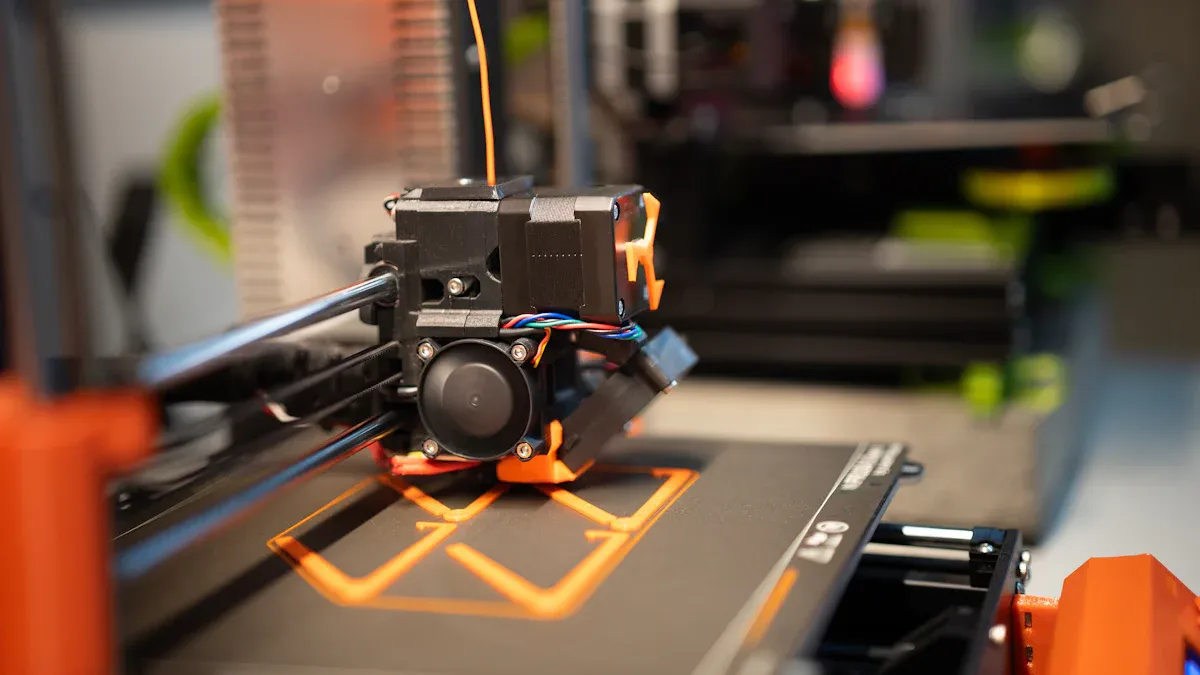
Image Source: pexels
Open in Slicer Software
Once you have the STL file, you need to open it in slicer software. Slicer software turns your 3D model into instructions your printer can follow. Two popular choices are Creality Slicer and Ultimaker Cura. Both work well for beginners and families. You just drag and drop the Turtle Cup Holder file into the program. The slicer will show you a preview of your print. You can move, scale, or rotate the model if you want to change its size or position.
Here’s a quick look at how these slicers compare for this kind of project:
| Metric | Ultimaker Cura | Creality Slicer |
|---|---|---|
| Total Movement | 1046 meters | 496 meters |
| Lines of Code | 1,389,549 | 650,014 |
| Filament Usage | 11.11 meters | 9.91 meters |
| File Size | 23,481 KB | 17,730 KB |
| Print Time | ~2x longer | Baseline |
You can see that Creality Slicer often gives you a faster print with less filament used. This means you spend less time waiting and more time enjoying your new Turtle Cup Holder.
Recommended Print Settings
Getting the settings right makes a big difference. For the Turtle Cup Holder, you want your print to look smooth and strong. Here are the settings you should use:
- Layer height: 0.2 mm
- Infill: 15-20%
- Print speed: 50 mm/s
- Nozzle temperature: 200-210°C
- Bed temperature: 60°C
- Supports: Not needed
- Filament: PLA or PLA+
These settings help your printer work at its best. You get a sturdy cup holder that looks great and lasts a long time.
Tip: If you use the Creality Hi Combo, you can select these settings with just a few clicks. The printer handles the rest for you.
Prepare Turtle Cup Holder File
Now you are almost ready to print. Double-check your settings in the slicer. Make sure the Turtle Cup Holder fits on your print bed. Save the sliced file to your SD card or send it straight to your printer if you use Wi-Fi. The Creality Hi Combo and other Creality printers make this step simple. You just load the file, press start, and watch your project come to life.
Printing your own Turtle Cup Holder is a fun way to learn about 3D printing. You get to see your idea turn into something real, right in front of you.
Troubleshooting
Download Issues
Sometimes, you might run into problems when you try to download the Turtle Cup Holder file. Don’t worry! Most issues have easy fixes. Here are some common problems and what you can do:
- Slow or Stuck Downloads:
Check your internet connection first. Try refreshing the page or restarting your Wi-Fi. If the site seems slow, wait a few minutes and try again. - Account Problems:
Make sure you are logged in. Some sites need you to confirm your email before you can download. Look for a confirmation email in your inbox or spam folder. - File Not Found:
Double-check that you searched for “Turtle Cup Holder” by Adel85. If you still can’t find it, the designer may have updated the file name or moved it. Try searching on both Cults3D and Creality Cloud.
Tip: If you see an error message, take a screenshot. You can share it with the site’s support team for faster help.
File Problems
After you download the STL file, you might face a few small issues before printing. Here’s how you can handle them:
- File Won’t Open in Slicer:
Make sure you downloaded the full file. Sometimes, a download can get interrupted. Try downloading the file again. If the problem continues, update your slicer software to the latest version. - Corrupted File:
If the file looks strange or won’t load, delete it and download a fresh copy. Always use trusted sites like Cults3D or Creality Cloud to avoid broken files. - Model Looks Wrong in Preview:
Check that you opened the correct STL file. If the model still looks odd, reset your slicer settings to default.
Here’s a quick table to help you troubleshoot:
| Problem | What To Do |
|---|---|
| Download won’t start | Check internet, log in, refresh |
| File won’t open | Redownload, update slicer |
| Model looks strange | Reset slicer, check file version |
If you ever feel stuck, reach out to the 3D printing community. Many users love to help and share their tips!
Next Steps
Print and Customize
You have your Turtle Cup Holder file ready. Now it’s time to print and make it your own! Start by loading the sliced file onto your Creality Hi Combo or another 3D printer. You can use a print resolution of 0.1 mm for extra detail or 0.2 mm for a faster print. Set your nozzle temperature to 205°C and use an infill of 40% if you want a sturdier holder. You don’t need supports, so you’ll save filament and cleanup time.
Here’s a quick look at some print and customization options:
| Feature | Details/Examples |
|---|---|
| Print Resolution | 0.1 mm or 0.2 mm |
| Nozzle Temperature | 205°C |
| Infill | 40% |
| Print Speed | 42 mm/s |
| Supports Needed | None |
| Customization | Paint with acrylics, drill or trim for fit |
| Usage | Holds cups or candles |
| Design | Articulated, flexible, fun to display |
After printing, you can get creative. Paint your turtle with acrylic paints for a splash of color. If you want a perfect fit for your favorite cup, you can trim or drill small parts. The articulated design lets you move the turtle’s limbs, so it looks great on any table. You can even use it as a candle holder!
Tip: Watch video instructions if you need help with assembly. Many users find these guides helpful.
Share Your Results
You finished your Turtle Cup Holder—now show it off! Take a photo and share it on Creality Cloud or Cults3D. The Turtle Cup Holder has already inspired over 7,400 downloads and 1,100 likes. When you post your print, you join a community of makers who love to see new ideas.
- Post your photos in the project gallery.
- Leave a comment about your experience.
- Try different colors or uses, then share your tips.
You might even inspire someone else to start their own 3D printing journey. Sharing your results helps others learn and brings more creativity to the community.
You can see how simple it is to download and print your own Turtle Cup Holder. With a printer like the Creality Hi Combo, you get a smooth and fun experience from start to finish. Try this project today and let your creativity shine. Don’t forget to share your Turtle Cup Holder with the community. Your ideas might inspire someone else!
Tip: Snap a photo of your finished print and post it online. The community loves to see new designs!
FAQ
How long does it take to print the Turtle Cup Holder?
Most users finish printing in about 3 to 4 hours. Your print time may change if you use different settings or printers. The Creality Hi Combo works quickly and gives you smooth results.
Can I use other filaments besides PLA?
You can use PLA or PLA+ for the best results. Some users try PETG or ABS, but PLA is easier for beginners. Stick with PLA if you want a simple, colorful print.
Do I need to assemble the Turtle Cup Holder after printing?
No assembly is needed. The design prints in one piece. You can use it right away. If you want, you can paint or decorate it for a personal touch.
What should I do if my print fails?
Try these steps:
- Check your print settings.
- Make sure your bed is level.
- Clean your nozzle. If you need more help, ask the 3D printing community for tips.

