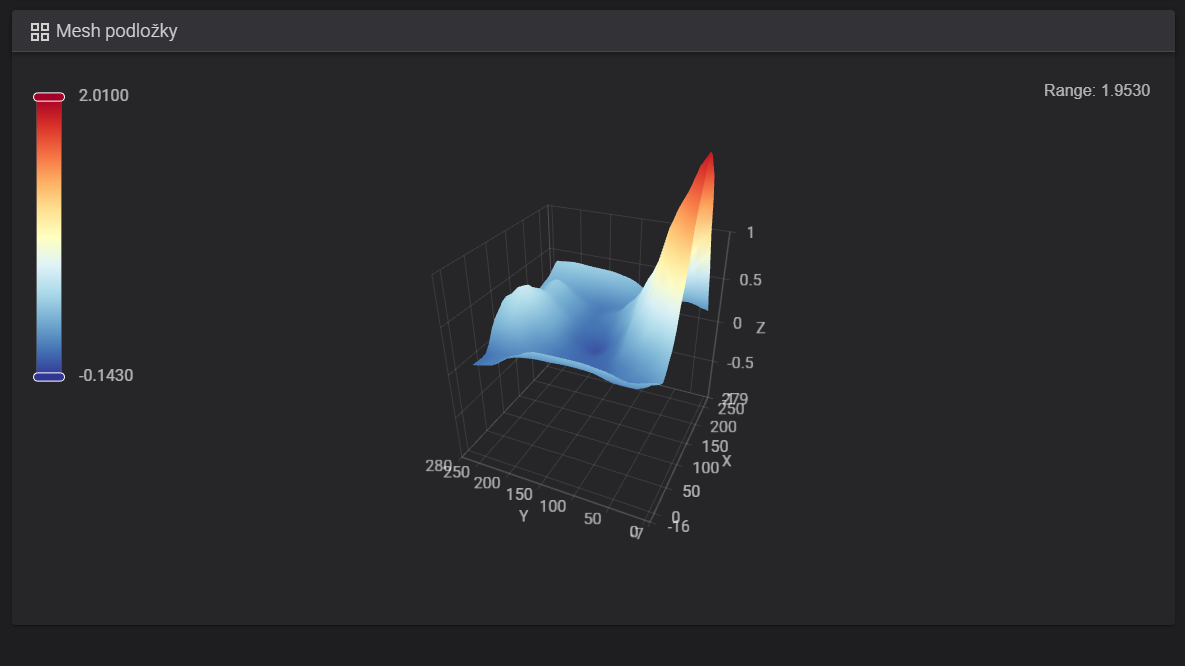
Hello. I want to ask about manual bed leveling. Is it possible to do this with this printer, and has anyone done it on an i7? I’m a newbie, and I’m afraid of making things even worse.
Yesterday, I was printing an object with a large surface area on the bed, and I noticed that some areas of the first layer looked pretty ugly. Before the print, the printer performed quite a long auto-calibration on the whole plate, twice.
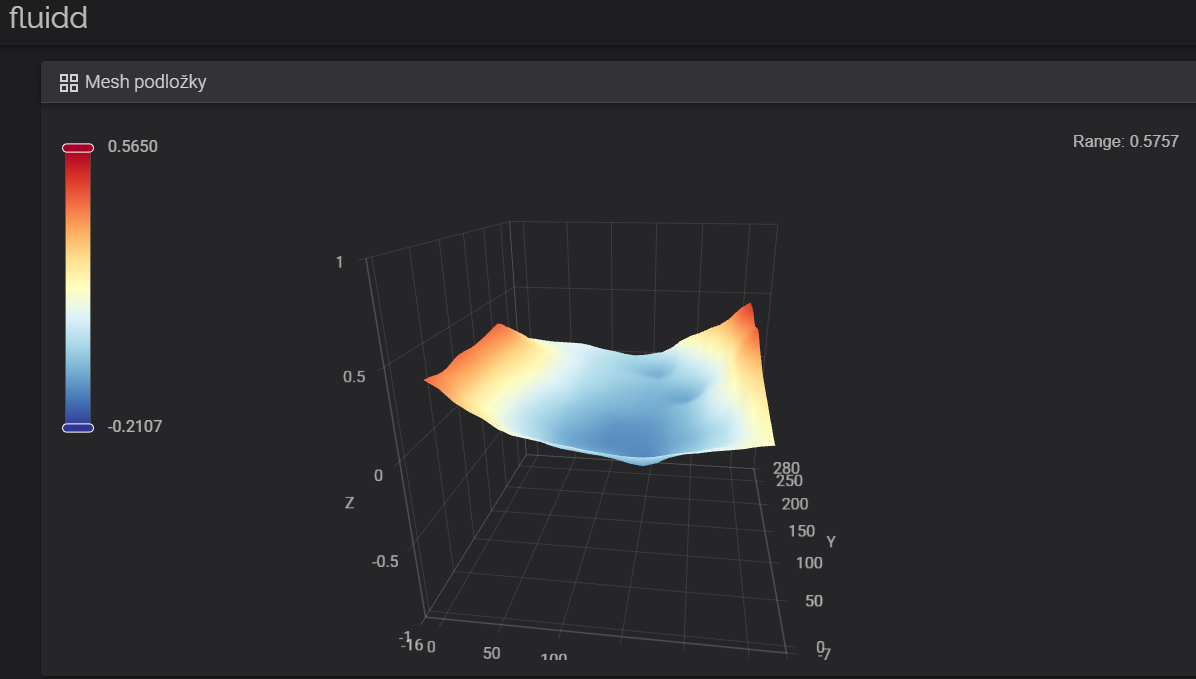
When I checked the bed mesh map in Fluidd, I discovered that my bed is warped like a banana, with a height difference of 0.826 mm across the bed. That seems like quite a lot.
What do you think? Is this normal, and what can I do about it?
You won’t reduce the calibration process time, but you will get the best prints ever, and they will adhere perfectly to the print bed—no more warping or defects, no glue, no need to clean the bed often, all the problems will be gone
Thank you for response. I chcecked your video but i doňt get it completly. (meybe because of automatic translation or i am just dumb ).
So you loose screw on bed. Than move nozzle to the corner as much as it can get on X and Y axis. Than go down with nozzle so it touches the bed. And than you try to put paper under it. And here i got lost.
How do you change height of the bed? Do you push it down with fingers (if it is too high in fluidd) until you get paper under nozzle and it moves with little drag? Do i have to hold it in right position when tightening screw back? What if i push it too much and it is too loose? How do i lift it back?
Yes, the video is quite old; in fact, I was learning as I filmed it (XD). You don’t actually need to use your hands or paper; in fluid you can lower the nozzle past Z = 0. Go to the bed mesh map and click on the corner that is too high; check the value shown there, loosen the corresponding bed screw, and lower the nozzle at that exact corner using a negative value (for example, -0.40). Once the nozzle is in that position, adjust the screw; that corner of the bed should now have a lower value than before. If it has lowered but isn’t quite right yet, you can repeat the process until all the corners are level.
in that corner you see: X = 5 and Y = 255, so first make sure you take out your pop shotter by unscrew 2 screws that hold in place, dont make force to take it out, be gentle so cant brake by accident so you can work with more space. then press home all on fluid (on tune tab), when home process ends, go to the (home tab) and put a value like 100 to Z so the you cant make mistakes while traveling on X and Y. when you are there, just travel to the position of that corner but just using fluid, on the home tab, put the corresponding values of X and Y of that corner, then loose the screw, and lower the nozzle so the bed lowers to the corresponding Z = O, if your corner is “Positive” (0.6) you must put negative (-0.60) to Z value, and then you tight the screw of that corner. after you do that to the corners you are having that RED values, as i see on your photo your problems are on your 4 corners, so you need to do every one, step by step, corner by corner, (i recommend you to do in X (cross) first front left corner, and then, back right corner. and then back left corner, and ending with right front corner. once you adjust every corner by lowering the bed with the help of the nozzle and the negative values that you put on fluid and then tight, when you done, press home all on the tune tab, and then in that tab, press calibrate (all in fluid) when calibration is done, post a picture of your new bed mesh if your results are better than before, if not, try it again until you find the best way to do it
Thank you for your time and detailed manual. I wanted to do it today and i decided to do first layer test before and after. After first test i got pritty alright first layer. So i decided not to fix something what is not broken. I will do it eventually if it get worse and i know where to find manual.
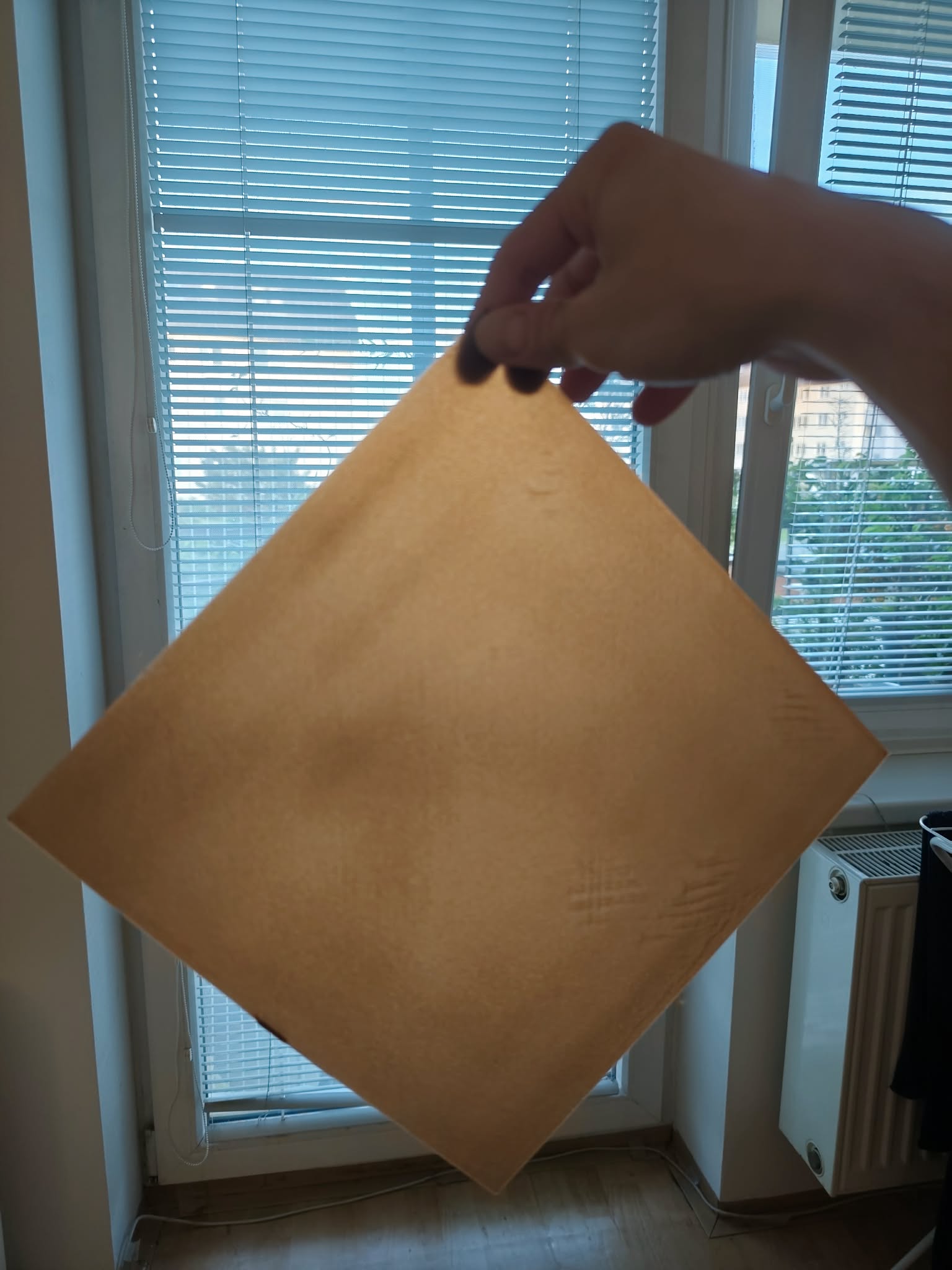
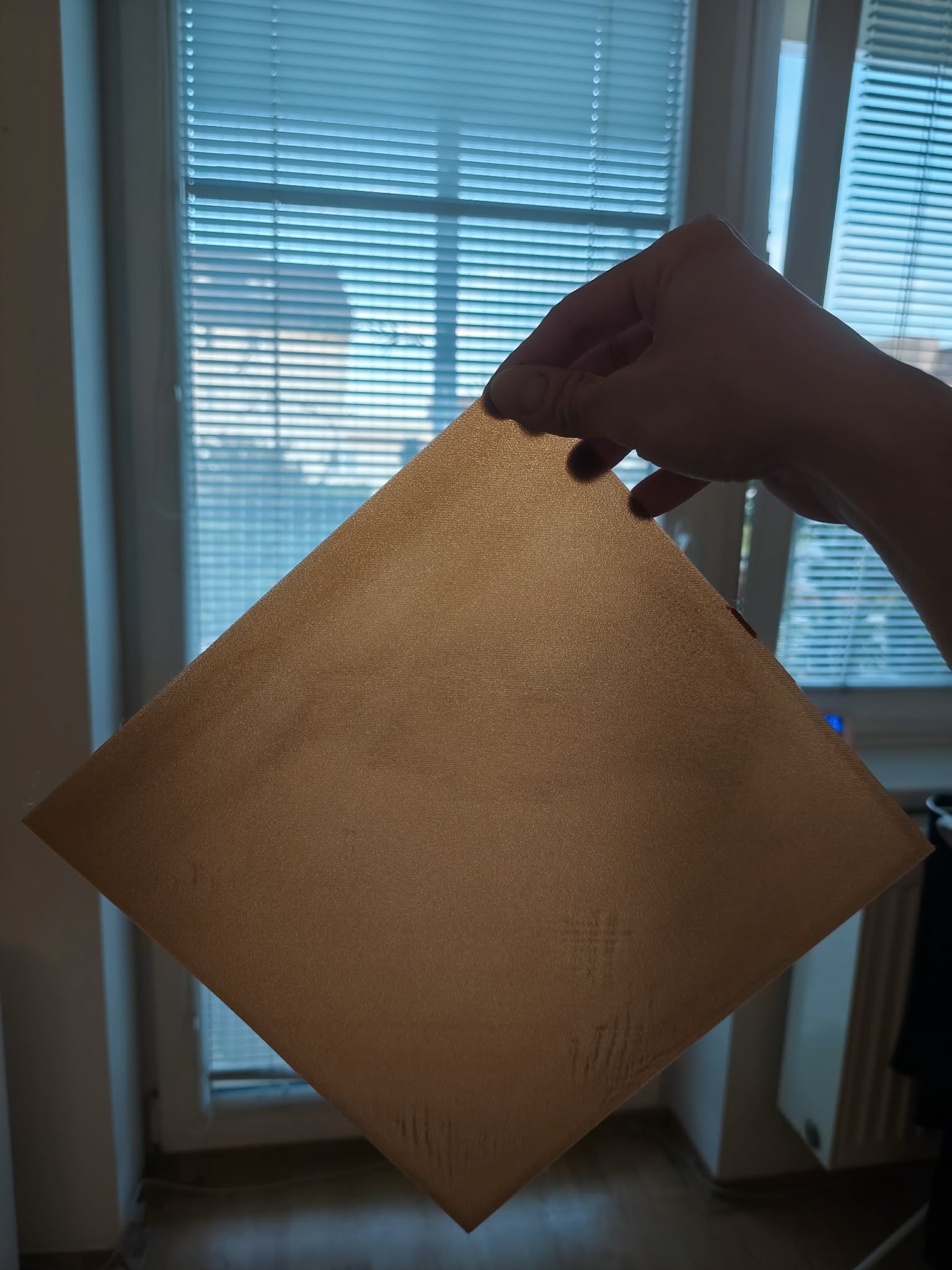
On the sheet there are some artefacts but they look worse then it is in reality. From the bottom it is completly smooth. I clean plate with IPA after every print and also i stumpled on pritty decent and cheap filament which i recommend - Flashforge hyper PLA.
I strongly recommend that you do not use the printer with that bed-leveling map; it shows terrible irregularities, and your printer is a ticking time bomb. If you don’t believe me, look at posts from people who lived through a nightmare involving a massive blob of accumulated plastic on their printer—caused by that unevenness—after starting a print and going to sleep or leaving the house.
You’ve got a 0.8 variance—that’s huge. And like I told you, your printer is a ticking time bomb: don’t be lazy, try to fix the bed, man; don’t wait for a nightmare to happen.
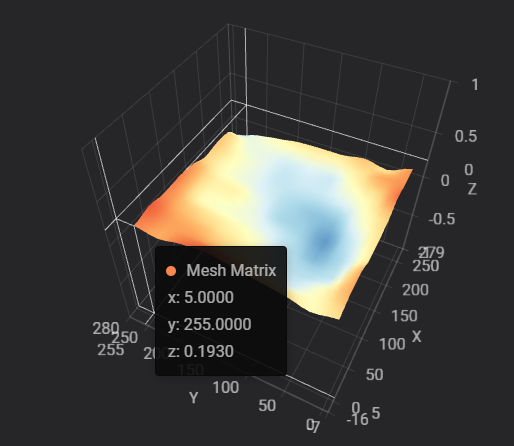
Thank you for teasing my nerves. I played with it for last 3,5h and this is best result. I once had minimal difference in 3 corners and 4. was 1,1 mm high. So i pushed last one with big hopes and than i got what you see bellow. I tried your method and also cooperation with my GF. I loose screw or both screws on one side, than she pushed with her palm and while pushing i tightened screws. We also tried diagonal pushing. I am tired boss.
Amazing work, brother! I’m so glad you managed to get those values! Believe me, this puts a smile on my face! I have a secret trick (it’s not the ultimate solution, but it works wonders for me): it’s easy enough to lower the corners a bit to improve the range, but how do you adjust the center of the bed? That was what worried me; I know it can be fixed with the screws, but—as you know—that takes a lot of time… though the payoff is definitely worth it. So, after days and days of trying to get the best possible bed mesh range (0.4), I simply placed a bit of aluminum foil under the textured pei plate (aluminium foil is about 0.002 mm thick I usually place 1 or 2 sheets of aluminum foil over the area marked in light blue and 4 to 6 sheets over the very dark blue areas, or I simply fold the foil to increase its thickness. ), and now my bed is in the 0.2 to 0.3 range—hahaha. It works perfectly; I couldn’t ask for more. Now, it’s actually really hard to get the prints off the bed.
One last thing: if you’re printing as a hobby or for home use, I suppose you can get away with the aluminum foil tip method and leave it like that. But if you’re using your printer strictly for work—like I do—don’t assume the setup is a “set it and forget it” deal. Unlike the Creality HI (which I own)—which has a rock-solid, incredibly rigid bed—the Sparkx i7 has a flexible plastic bed mounted on springs. While the HI’s bed mesh stays consistent over time, the Sparkx bed is so pliable that the mesh varies constantly—day by day, even hour by hour—eventually drifting out of alignment. So, if you plan to do a lot of printing, especially large or important jobs, make sure to check the bed mesh periodically; don’t just neglect it.
Bro i tried trick with aluminium foil. It did not go well as you can see Even printer was tapping one spot many times like “bro, are you serious?” Using old crumpled foil was probably bad idea.
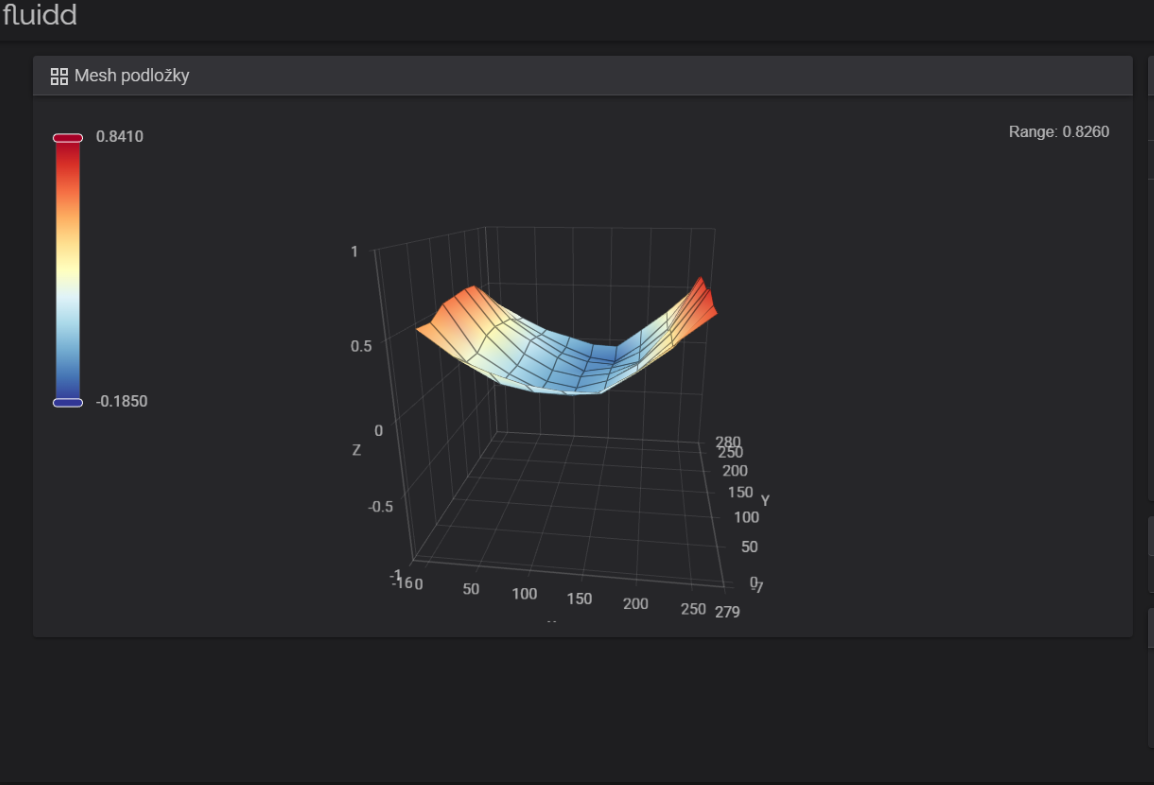

 ).
).