The modifier tool is a really helpful tool in Creality Print that allows you to change settings in specific areas of your model rather than the entire print. Let’s call them “targeted tweaks.” 
Simply right-click on your model, then select Add Modifier.
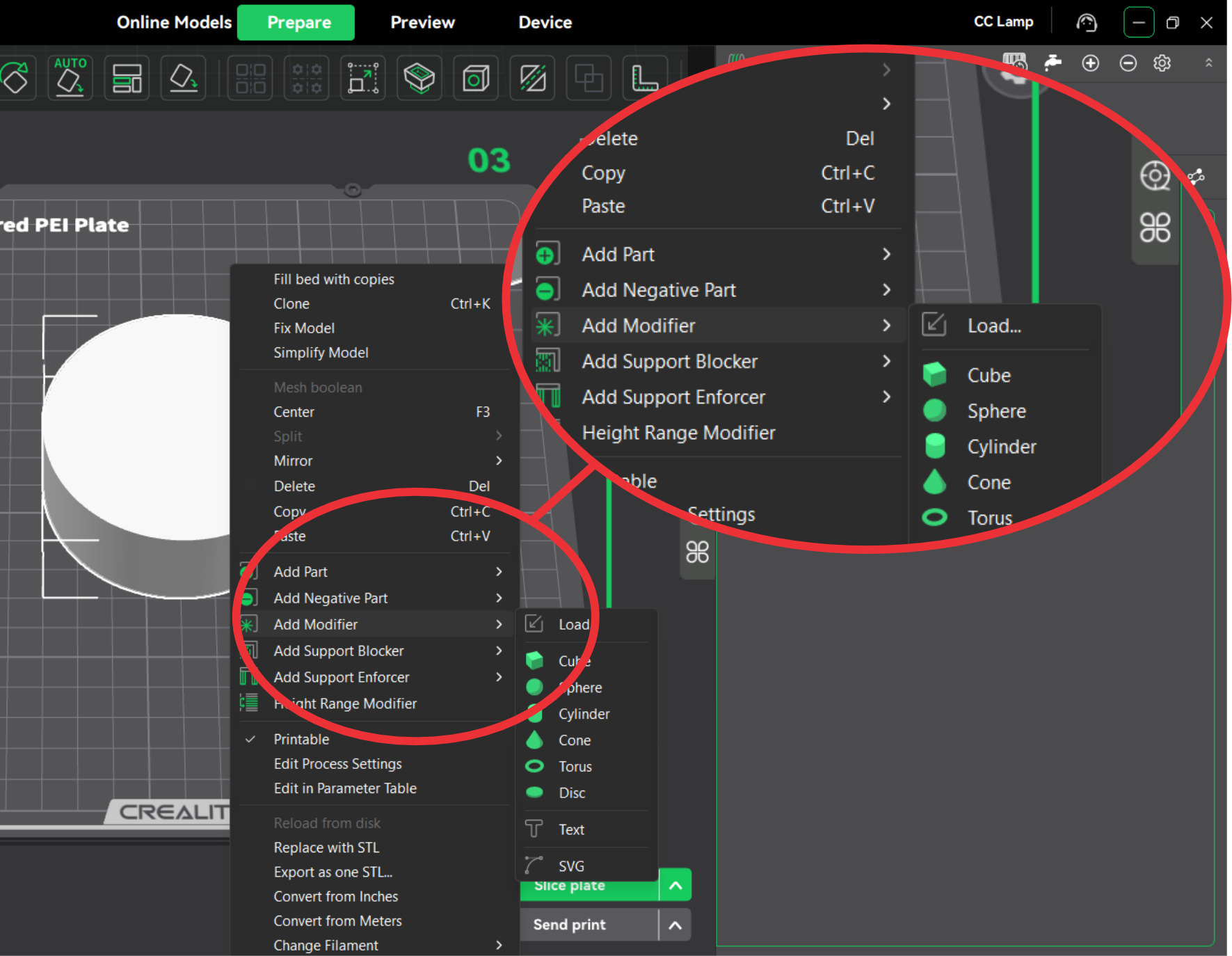
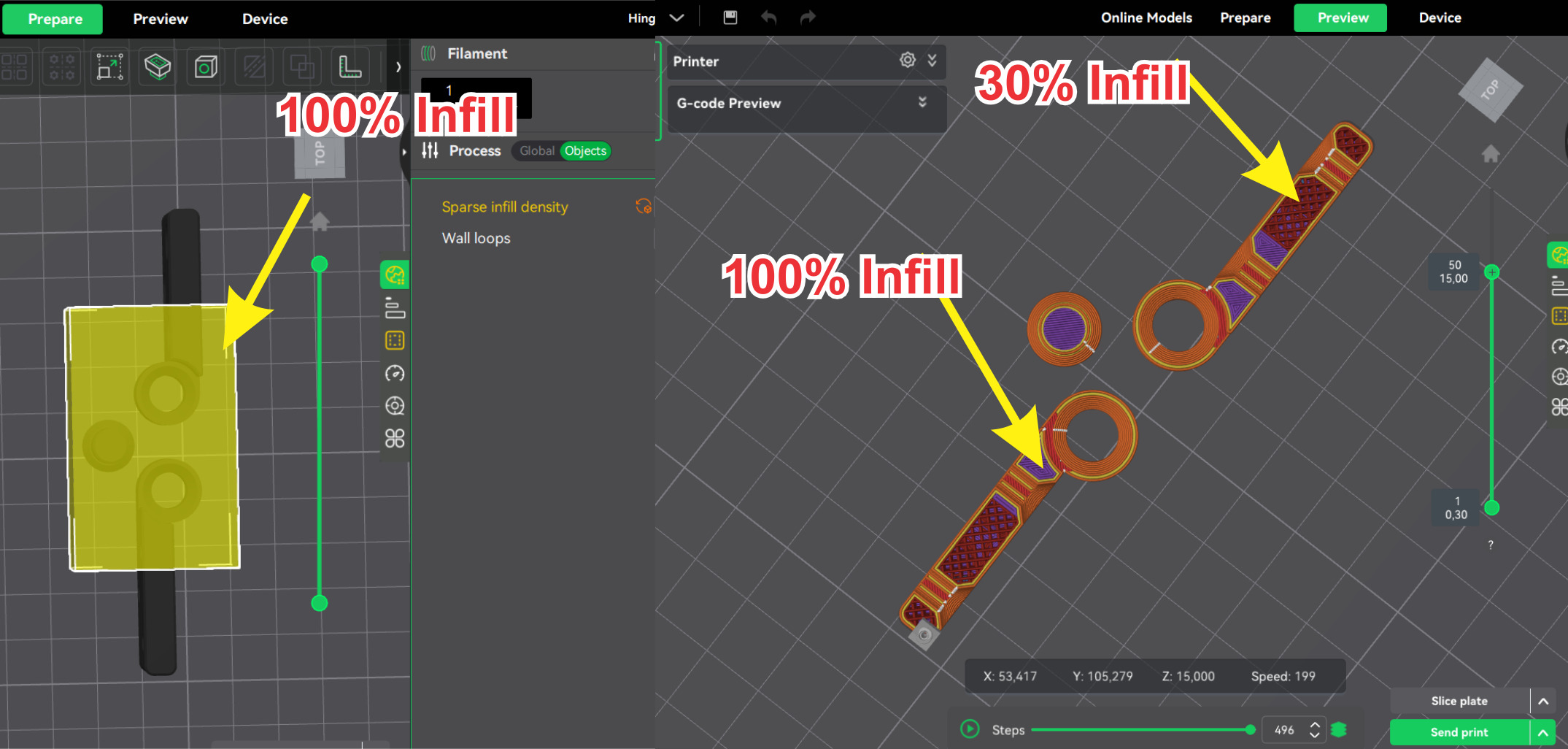
By using a modifier you can change infill density to either go higher or lower; you can increase infill where strength is needed (like joints or thin parts) or reduce infill in non-critical areas to save time & filament
But modifiers are more than just changing infill. When working on prints that ask for more than just “one size fits all” in the settings, modifiers are great, as they add flexibility to your needs. You can fine-tune precisely where it matters, giving you stronger pieces, cleaner finishes, and better outcomes without wasting time or filament, rather than compromising over the entire model.
Modifiers are essential for functional printing like mounts, hinges, and clips. These parts often have unique stress spots that ask for more strength. You can make your prints stronger, more durable, and more purpose-built without modifying all by supporting only the key areas instead of putting walls or infill across the entire model, which takes time and material.
By using modifiers, you can adjust the support settings; you can either lower dense support elsewhere or add it just where it’s necessary, like in complex overhangs. This saves material, improves print quality, and simplifies cleanup.
Modifiers can be used to slow down in certain areas but, on the flip side, also used to speed up. This is great. as it helps avoid blobs or poor detail.
With the use of modifiers, you can easily improve the quality, strength, and cleanliness of your print where it matters.