I’m a noob and just bought the i7 a little over a week ago sooo…. I was having problems with adhesion in a few places on the plate so last night I cleaned the plate with Dawn and warm water and rinsed thoroughly then dried. An hour or so later I then started a print and went to bed. The next morning I walked in to find a softballs worth of blob on the printer. It had popped off the cover of the head unit and even popped up the latch on the hotend. I understand I need to heat it up and try to get it off but some of the stuff has migrated up to places that won’t normally get hot. Is there anything I need to be careful of here or just go for it?
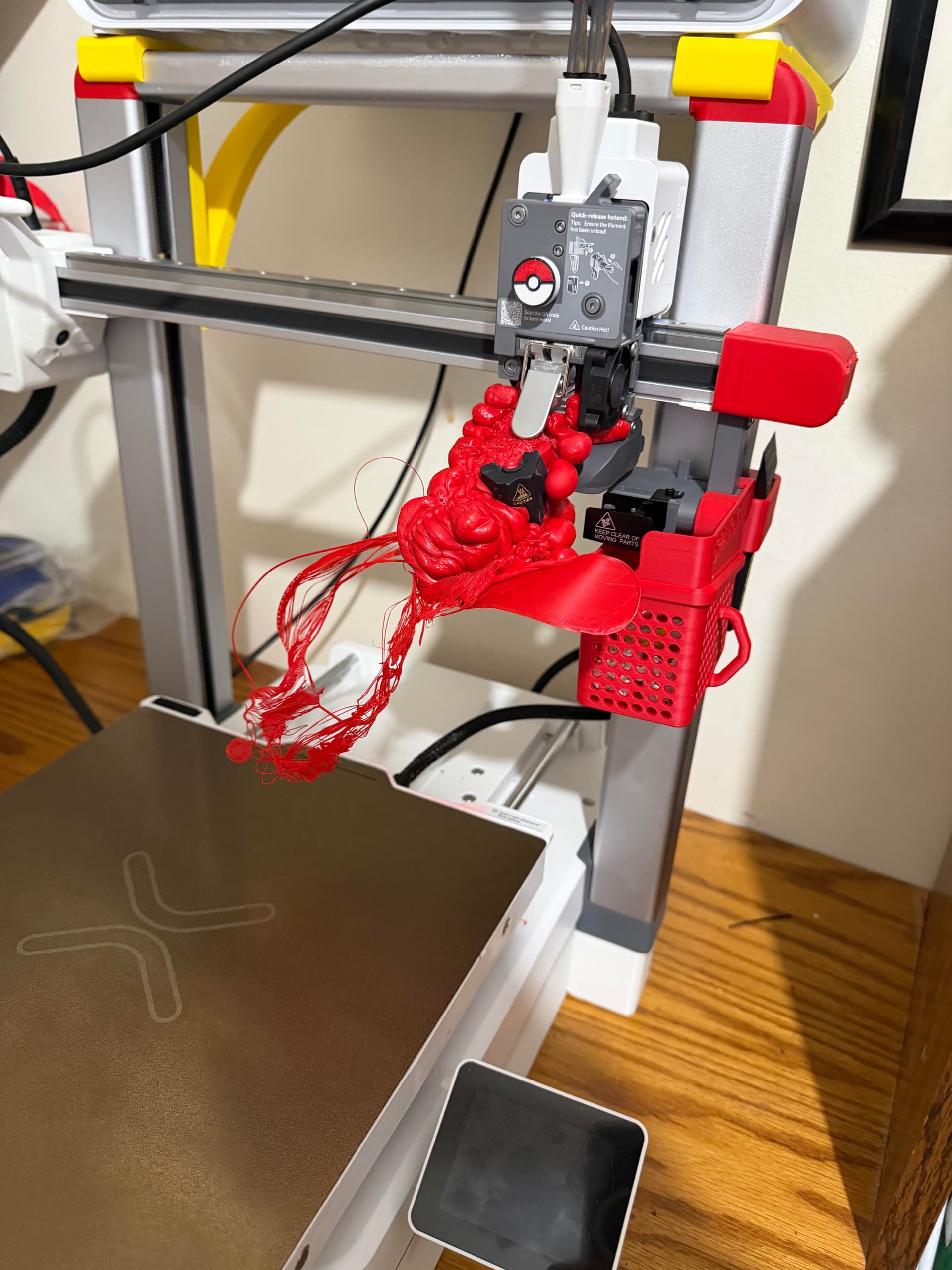
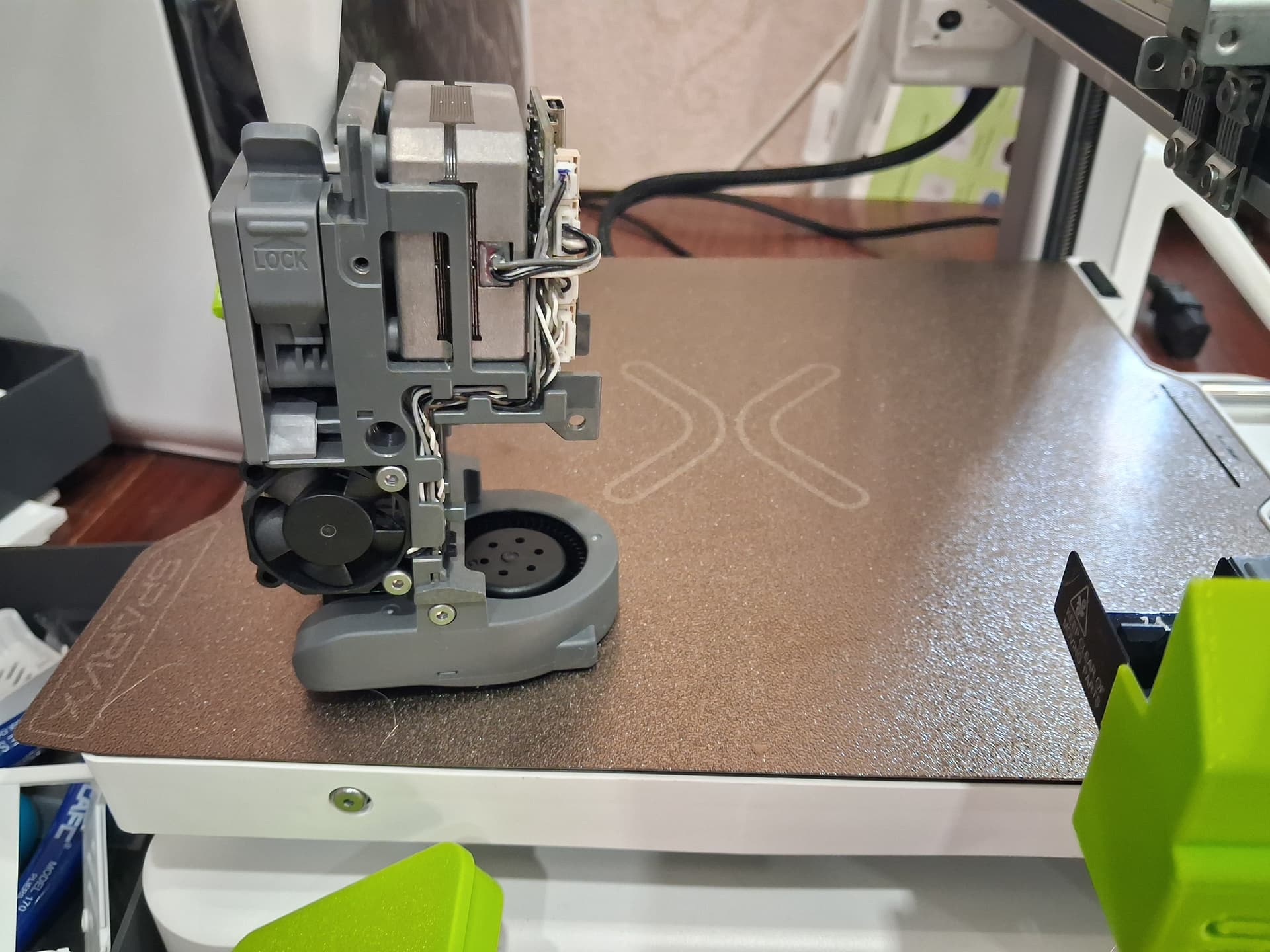
Hello, it’s probably too late to be careful  I try not to leave the printer unattended for a long time, the settings have an artificial intelligence function that monitors the “spageti” and incorrect printing and stops the bee in case of problems. Accuracy will be needed when disassembling this plastic blockage, disconnect the tubes, unscrew 2 screws from above and disconnect the tape _ C data omen cable, then unscrew 4 screws attaching the print head to the linear guide, then unscrew the model blowing fan, remove the plastic and try to remove the hotend.
Though not nearly as bad, I had a similar experience with one of my early prints. Mine was the result of forgetting to change the material type, so the printer was processing PETG rather than PLA. Fortunately, I was able to stop it only a couple of minutes in. That is why I always double check my settings now and take the time to watch any print lay down the first few layers. I hope you are able to remove that blob successfully.
1 Like
Did you manage to take the printhead apart? Were many parts damaged?
I heated it up and managed to pry off the main blob. Then pried out the other pieces as carefully as I could. The head still has red goo all over it that I can’t get off but all of the blob is gone. I had to hit the blob with a hammer to get the silicone shroud loose but it still broke a small piece off of it. It goes back on but doesn’t fit as firmly. As for printing I have put through a couple of things since and it seems to be working fine.
As for getting the hot end off though no, I can’t get it off. Everything I have read says to pull it down and out after unloading the filament. I am pulling as hard as I can and it simply will not come loose. I’m afraid to pull harder for fear of breaking something else. Here is a video of me trying to pull from before the big blob incident. Google Drive Video Link If I am not doing it right please let me know.
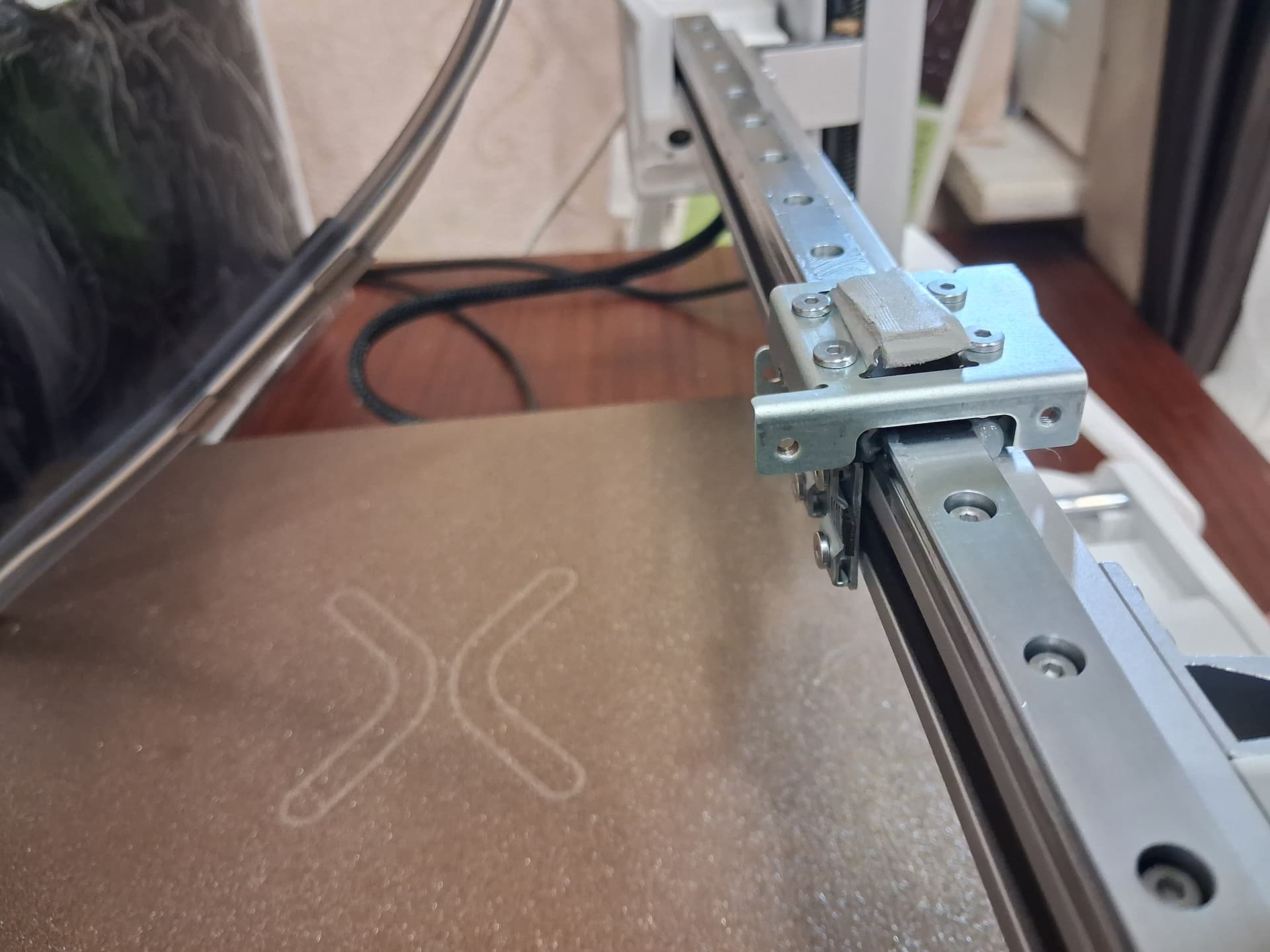
Brother, the bed adhesion issue isn’t caused by a dirty print surface, but rather by the bed mesh (leveling map); the printer came from the factory with very poor leveling that gets worse over time. Mine even had loose screws on the guide rail and on the Z-axis screws that connect to the X-axis rail. I strongly recommend that all Sparkx i7 users check every screw on the machine and verify the bed mesh in Fluidd; then, you need to adjust it manually by raising or lowering the bed using the side screws, just as shown in this video (it’s in Spanish, but you can turn on subtitles in your preferred language).
(This video is outdated because I was still learning when I made it; I discovered that you don’t need to use paper at all. All you have to do is match the Z=0 position at the center of the bed with that of the four corners, since you already have the Z=0 value (the printer uses the Z-height from the center). If you really want to get into 3D printing, you will have to learn how to troubleshoot issues on your own—though a little help along the way is fine, too—as there are aspects of 3D printers that are fundamental and easy to learn.)
Listen, bro, I had the same adhesion issues. I use my printers for work, and with the SparkX i7, I could only print successfully for the first few days; once I really put it to work, the parts would just pop off on their own—it was a total disaster with a lot of wasted filament. I never had a blob like you did, but I certainly wasted a lot of material due to detached parts and poor finishes. Eventually, I discovered the problem was the bed mesh. Normally, a bed mesh should have an irregularity range of about 0.2 to 0.3 mm—0.4 mm is tolerable at most—but my SparkX i7 had a variance of 1.0 mm. That’s right, a full 1.0 mm—roughly five times the tolerable amount of unevenness. Basically, the bed was tilted more on some sides than others instead of being perfectly flat. Luckily, this can be fixed manually; the printer design allows us to adjust the height of the four corners because there are screws on the sides that, when loosened, let the bed move up or down. We can correct the unevenness using Fluidd: we check the variance at a specific corner and then—either manually or via printer commands—position the nozzle at Z=0 (matching the Z=0 level at the center of the bed) so that all the corners align with that same center height.
I also noticed that the back of your printer seems to be too close to the wall; am I mistaken? The bed cable shouldn’t bend or hit any objects; you need to leave enough clearance so the cable can move without obstruction.
1 Like
Sorry for all the replies, but believe me: that’s it. Once you learn how to do it, getting that perfect bed mesh becomes insanely easy and addictive. Bro, it doesn’t matter how dirty the bed is or how many days or weeks have gone by since the last cleaning—your prints will stick to it like they’re welded on.
To access Fluid, go to your printer’s settings and enter the network options (where you connect to Wi-Fi); there, you will see numbers below your network name—that is your IP address.Go to your pc and on your browser Enter those numbers exactly as they appear (including the dots and colons), add :4408 at the end (e.g., xxx.xxx.x.xx:4408), and press Enter. Doing this while the printer is on will give you access to Fluid. You can now go to the “Tune” section and select “Home all”; once the printer finishes the homing process, you can press “Calibrate.” When calibration is complete, you will be able to view the bed leveling map (bed mesh), as shown in the video.
1 Like
I also couldn’t detach the hotend from the print head; I tried applying force but was afraid of breaking it, so I decided to do it later once I order a hotend with a different nozzle diameter. I’ll try to remove it and provide a detailed description if I succeed. The silicone sock is a consumable item—you can buy it separately or with a new hotend and swap them out.
Thanks for the advice!
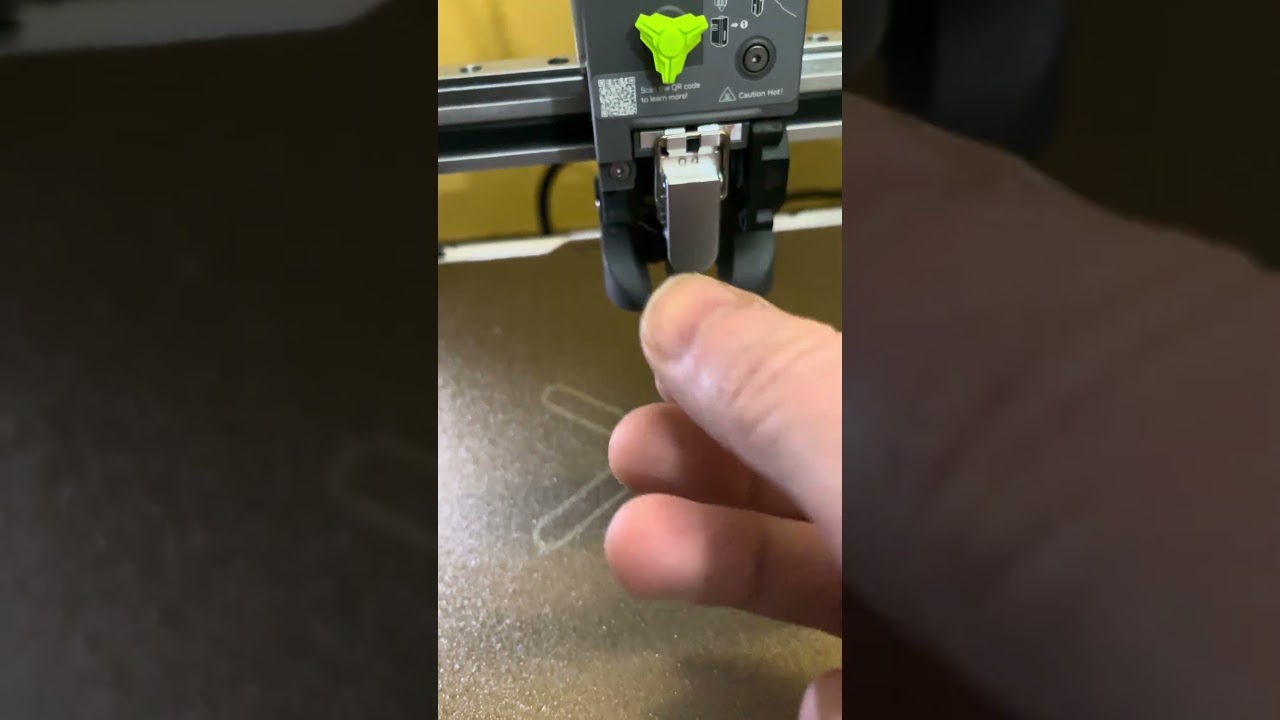
Removing the nozzle is super simple: just go to the printer and heat the nozzle to 200°C. Once it reaches that temperature, set the value back to 0°C (to avoid an error message like “irregular temperature reading” when removing it), take off the silicone sleeve, and proceed to remove the nozzle. I’m going to upload a video right now showing how to do it; I change the nozzle very frequently because, as I mentioned, I use my printers for work and use 0.6 mm, 0.8 mm, and 0.4 mm nozzles.
1 Like
Thanks, I’ll give it a try this evening.

Set the nozzle to 200°C; once it reaches that temperature, set it to 0 and remove it—effortlessly and without using force.
1 Like
Like and subscribe. Thanks!
1 Like
Thank you! 
Man, my hands are shaking like I’m holding a Rolex XD. I’m not really used to recording videos, but I want to help others; still, I got a bit nervous and all that.
1 Like
Everything is fine; the main thing is the essence, the meaning, and the desire to help conveyed in the video—the rest is trivial. Thank you!
1 Like