Sleep Mode
To meet the needs of users printing during the night or in quiet environments, the i7 features a Sleep Mode. This mode minimizes operational noise and visual distractions as much as possible, without affecting print completion, providing a quiet and distraction-free printing experience.
Sleep Mode Description
When Sleep Mode is enabled, the i7 will automatically reduce operational noise and disable certain visual feedback, including but not limited to:
- Appropriately reducing printing speed
- Turning off ambient lights, notification sounds, and status LEDs
- Shortening the screen-off timer
This mode automatically exits after the print job is completed or can be manually turned off by the user.
While Sleep Mode is active, certain operational parameters are restricted, including but not limited to:
- Adjusting printing speed
- Turning on ambient lights
- Turning on status LEDs
- Enabling notification sounds
- Adjusting screen-off timer
To modify any of these parameters, Sleep Mode must be exited first
How to Enable
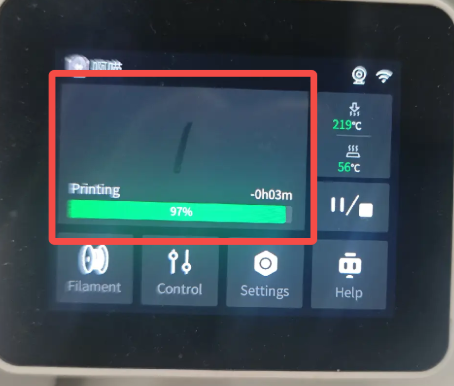
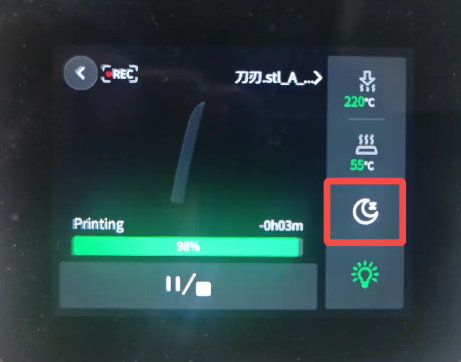
During printing, tap the “Sleep Mode” button on the printer touchscreen to activate it immediately.
How to Disable
After the print is complete, tap any button on the completion pop-up, or start a new print job via the App or slicing software. The i7 will automatically exit Sleep Mode and return to the default operating state.
Alternatively, manually deactivate Sleep Mode using the dedicated button to restore default settings.
Note: Sleep Mode will automatically turn off and return to default settings if the printer loses power or is restarted unexpectedly.