how the hell ?!?!!? single spool holder, not CFS and this is getting in the way of printing.
CREALITY, wake up and do better; you cant just breakl people’s machien just because you can’t think !
I can not pass this error and this is just preventing me from printing.
3 Likes
I got it just after yesterday’s (11/2) update. I have got around it by re-booting my K1Max after each print. Would like a better solution - Creality!?
3 Likes
I got this on the first print after the update. I turned the printer off and on and the message went away, so I can print now.
1 Like
I’ve got the same problem.
Printer K1 Max
firmware 1.3.5.18
unable to select EXT filament so it’s imposible to print
1 Like
I’ve got also the same problem.
I have the K1 Max, and after installing update 1.3.5.18 I cant print anymore, what is happening here CREALITY.
The message I get when I want to print is as follows: The machine consumables do not match the printed file.
Perhaps someone on this forum knows what is going on here and would like to share this with all other forum members who also have this problem.
1 Like
… WHY I don’t know, but work arround is to SEND ONLY and start the print after file-transfer to printer!
I have rooted both printers, so I can control start print via Fluidd…
It is a mismatch with new 1.2.5.18 firmware… so maybe it can be fixed with an update for Creality Print… so hopefuly someone from Creality is monitoring the forum for remarks made by users…
Same situation. The printer doesn’t print after an update. It needs to be restarted every time. Fix the error, quickly!
I was getting this error too after the update. If you go to the Device section in Creality Print, in the lower right you can change the type of filament that it thinks the spool holder has loaded to match what you sliced your object to print with, and then you can send normally. I think there should be a way to disable this warning. It just seems silly to have to set the type of filament you are using in two different places.
My problem has been solved. I downloaded and reinstalled Firmware 1.3.3.46.
And everything works perfectly again.
Creality CS has told me they’ve removed the new firmware from their website and are looking into what caused the problem with Firmware 1.3.5.18 is.
Did it take away the CFS prompts on Creality Slicer 6.3?
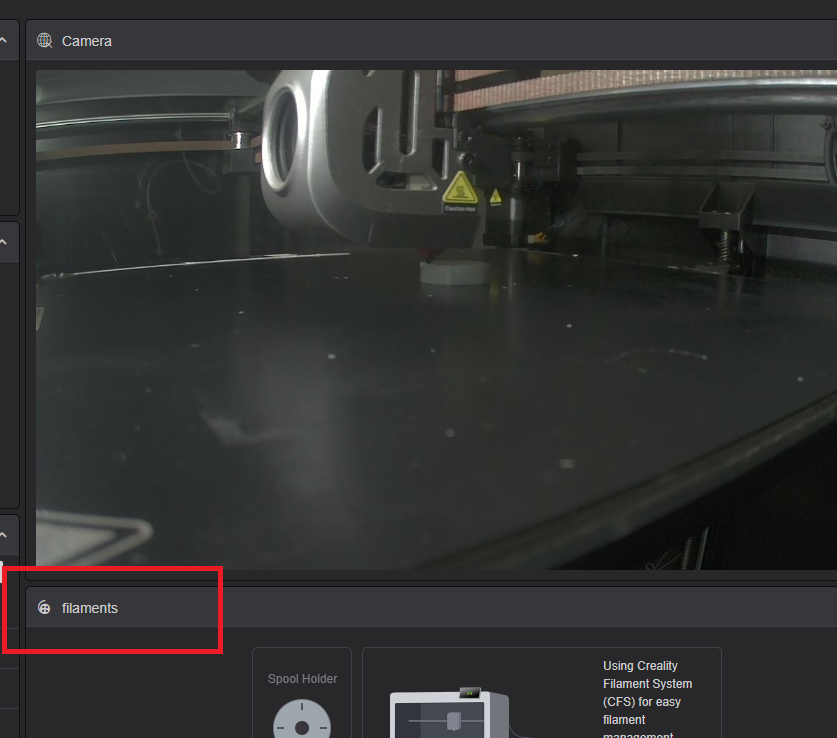
You do not have to revert the firmware settinmgs to fix this. In Creality print, click the Device Tab.
If necessary, click the Details button to show the full details.
Below the camera view, you will see a filaments section.
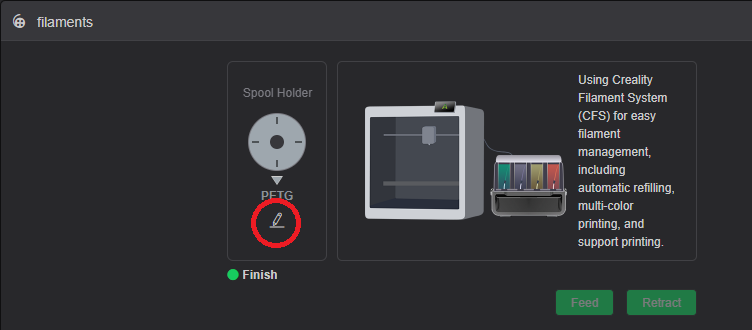
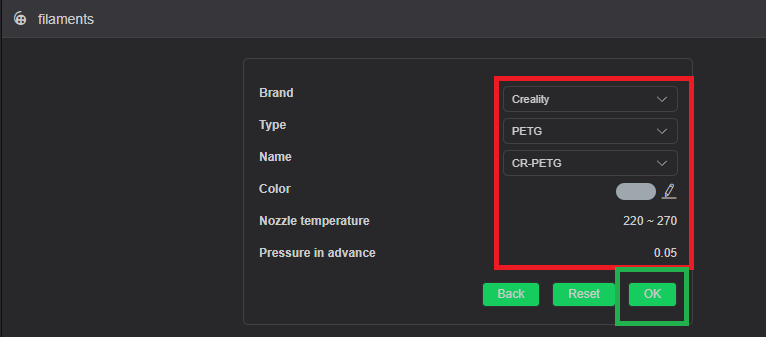
Click the pencil icon on the spool holder section and fill in the fields to match what is on the spool holder and click OK.
Now you can start print with out the message, as long as the print setting now match the printer supplies.
1 Like
Thank you! It fixed the issue
Sadly it didn’t solve the problem for me. I had genetic PLA in the spool but it kept insisting I needed to use my CFS reel 1 which has Ender PETG in it. If I lied and said there was PETG in the spool it would want to run with Nozzle 250 and bed 70 rather than 215/60
I ended up removing all reels from the CFs and restarting it but that made no difference . It still did the same.
After that I decided to gor from Creality print 6.3.1 for Linux to 7.0 but the appimage wouldn’t load. I installed the flatpak version and that not only runs but is quite happy to do what it’s told. Printing an item now with the right temperatures and the right filament. This is strange because I had used the setup I wanted to use twice before without any problems.
Last december they released a firmware update that solves this problem…
I am having issues printing with PLA. After slicing and sending files to a K2SE from Creality Print 7. When selecting start print an error pops up about a consumable mismatch. I am printing with a single spool with no CFS installed. After checking that the correct filament is selected on the printer is correct and matches what is shown in Creality Print 7 and reselecting start print in Creality Print the mismatch pops again wanting me to change to PETG. The file sent to the printer shows PETG in the file name. I have seen the earlier versions of Creality Print caused the same issues with the K1 series.
I have figured a work around for now by adjusting the nozzle and bed temp to PLA temps when the dreaded PETG comes from the slicer. I just select PETG in Creality Print and set temps to PLA parameters. It’s a juggle at the beginning of a print as the printer keeps changing the temps to PETG temps at the beginning of the process.
There is definitely a software or logic issue as both Creality Print and the printer both show the same filament but still cause a “consumable mismatch” error.
I uninstalled Creality Print 7 and installed an older version CrealityPrint_6.3.1.3548. The older version allows you to select the filament type in the slicer, whereas in Creality Print 7 does not automatically pick up the filament type from the K2 SE or what was selected in Creality Print 7 in the filament details. Somewhere the PETG info is stuck in the slicer memory or printer as I had reinstalled Creality 7 and still had the same issue with always sending prints as PETG no matter what was selected for type. My issue has been resolved by using an older version that is compatible with the K2 SE. Although it does seem to print louder than when using the newest version. Creality Print 7 may not work well with all printers. I also solved my nozzle crashing into the build plate by increasing the Z height to .08
Creality 7 is not as user friendly and not a simple one touch print and forget it when it comes to the filament selection process, for me it just didn’t work.